Work with views
You can store the current size and position of the windows from one or more screens on a view button or in the view pool.
You can call them later even if you moved or deleted a window.
To export or import stored view, see import user profiles or export user profiles.
The view pool
Section titled “The view pool”All views are stored in the view pool for the current user profile. Assigned views to a view button or an a X-key will be automatically stored on the next empty tile in the view pool.
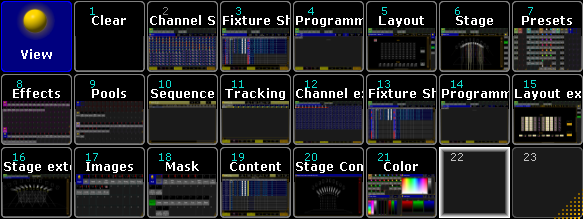
View pool
To get an overview about all stored views, open the view pool.
- Tap in the user defined area, tap at the Pools tab and tap at Views.
The view pool is open.
For more information about colors in the pools, see system colors.
Store custom views in the view pool
Section titled “Store custom views in the view pool”Requirement:
- A created view on a screen that you like to store. For more information, see Mange windows.
- An open view pool.
-
Press Store and then tap on a empty tile in the view pool.
The Store View Options pop-up opens.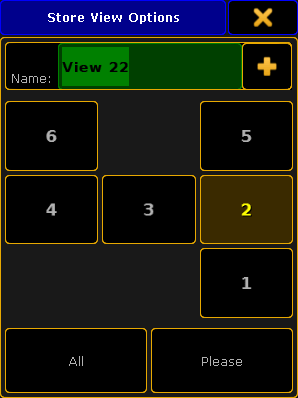
Store View Options pop-up
-
Type the view name in the green edit line.
-
Tap at the screens you want to store or if you want to store all screens tap All.
-
Tap Please.
The view is store in the view pool.
Assign views on a view button
Section titled “Assign views on a view button”Requirement:
A created view on a screen that you like to store. For more information, see Mange windows.
-
Press Store .
-
Press either a V-key or a X-key, or tap a view button.
-
The Store View Options pop-up opens.
Store View Options pop-up
-
Type the view name in the green edit line.
-
Tap at the screens you want to store or if you want to store all screens tap All.
-
Tap Please.
The view is assigned to the view button and stored in the view pool on the next empty tile.
Call views
Section titled “Call views”Requirement: A stored view.
- If the view is stored in the view pool, tap on the tile in the view pool.
- If the view is assigned to a view button, tap on the view button or press the respective V-key or X-key.
The stored view is called.
Delete views from view buttons
Section titled “Delete views from view buttons”The view is deleted from the view button but still stored in the view pool.
To delete views from the view pool
Section titled “To delete views from the view pool”Requirement: Open view pool.
- Press Delete and then tap on the view tile in the view pool.
The view is deleted from the view pool and from all assigned view buttons.