Configure the MA xPort Nodes in a browser
Besides configuring nodes on the console, it is also possible to configure MA xPort Nodes in a browser.
Important:
This topic treats subject areas that are important for the configuration of nodes in a browser. General settings are treated in the topics Adding devices to your session and Configure the DMX ports on MA devices.
Requirement:
- Connect the MA xPort Node directly to your PC using a network cable. Or connect the xPort Node with a network cable via an MA Network Switch or a network hub.
- Change the IP address of your PC to the same IP address space of the node (the last block of the IP address has to differ from the node).
Important:
The IP address of the node is located on its display.
- Type the IP address of the node into the address bar of the browser.
- The status window opens.
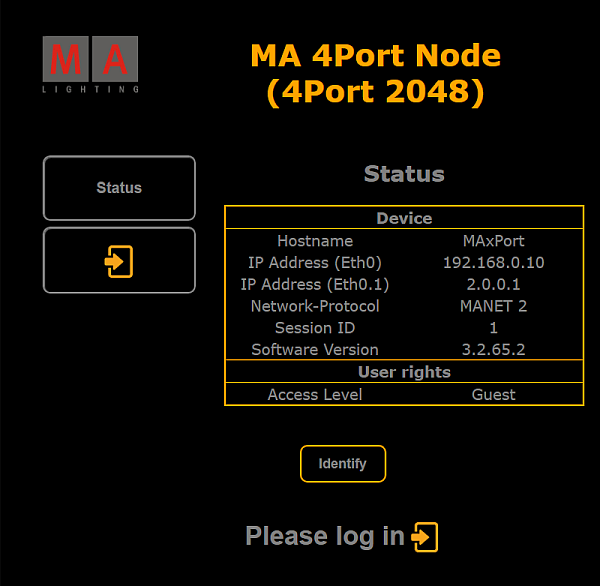
Status window – Configuration of nodes in browser
Hint:
Also, see the status of the node on its display.
- To light up the display of the node, click Identify – located below the status table – once.
The browser page turns green.
To turn off the illumination of the display, click Identify once again and the background of the browser page turns black again. - Next, log in:
-Click Please log in below the button **Identify **or click the button with the arrow pointing right below the button Status. - The login form opens.
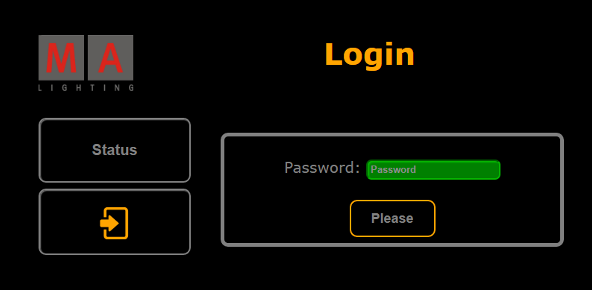
Login form – Configuration of nodes in browser
- Type admin into the password input mask and then click Please.
Hint:
To return to the status window, click the button Status on the left.
- If you have successfully logged in, a window opens showing the login credentials.
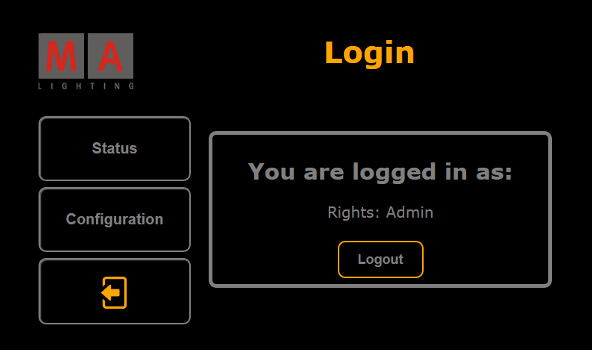
Successful login – Configuration of nodes in browser
- If you would like to leave this window, click Logout now.
- To proceed, click Configuration.
The window Node - Configuration opens.
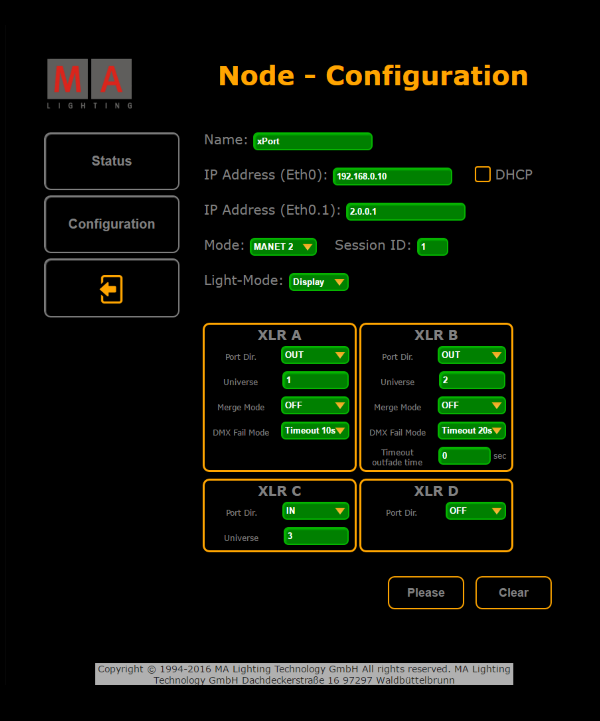
Node Configuration
- Adjust the settings:
-Enter the name of the node, the two IP addresses and the ID of the session in the corresponding input fields.
-Select the mode and light mode in the corresponding drop-down menus.
-Check the checkbox DHCP.
For more information on DHCP see Using DHCP in MA devices. - Adjust the ports in XLR A, XLR B, XLR C, and XLR D:
-Select the port in the drop-down menu Port Dir.
For more information on the port and merge modes see Configure the DMX ports on MA devices – Port Mode and Configure the DMX ports on MA devices – Merge Mode.
-Enter the number of the universe.
-Then, select the merge mode in the drop-down menu Merge Mode.
-Select the DMX fail mode in the corresponding drop-down menu.
-And enter the timeout outfade time if necessary. - To apply the settings you have made, click Please.
Your settings have now been applied. - If you would like to reset the settings that have not been applied yet, click Clear.
- You can now log out:
-Click the button with the arrow pointing to the left below the button Configuration.
Then, click Logout in the box.
You have successfully logged out.