Import images and videos
To import images or videos:
- Open the image pool first.
For information on how to open the image pool see Image Pool. - Then press Edit and tap the pool object you would like to store your image or video to.
- The Image Viewer opens.
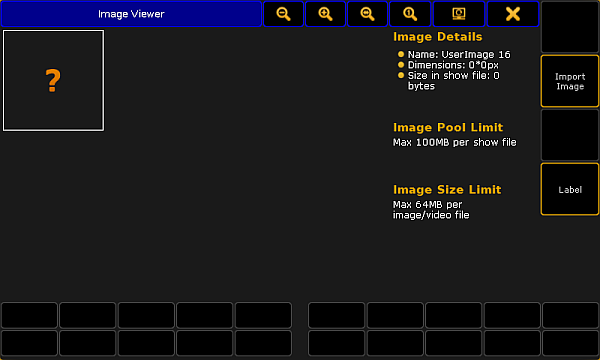
Image viewer
- Next, tap Import Image.
- The dialog Open File opens.
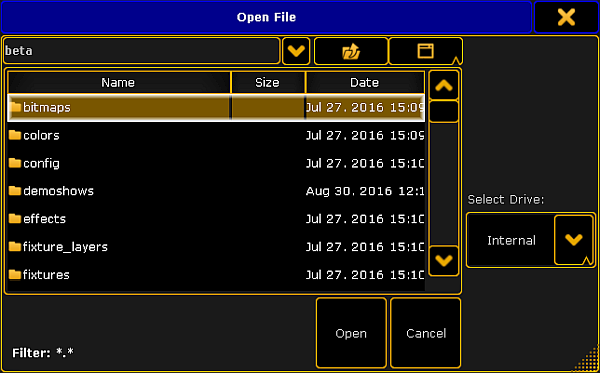
Image viewer – open file
- To select the display of folder in the dialog, tap the screen symbol on the right of the title bar.
- To select the drive, tap the triangle symbol on the right of the dialog.
- Tap the folder symbol in the title bar of the dialog and then tap the folder images and subsequently the folder predefined.
or:
Tap the folder bitmaps and subsequently predefined_images or predefined_videos. - After choosing the folder, tap Open to import the image or Cancel to close the dialog.
- To label the image or video you have just imported, tap Label on the right of the dialog Image Viewer.
- The image or video you have imported is now in the image pool.
Important:
The MA software provides the capability to use additional proprietary third-party software which allows the usage of diverse media content. Proprietary third-party software is subject to license terms included with its documentation. If you decide to install the MA software package including the third-party software, you agree to be alone responsible to fulfill the terms of such license terms including proper licensing. If you install the MA software package without the third-party software, you can still use non-proprietary media software (VP8, VP9 etc.). For more information on the file formats see Supported file formats.
To use the proprietary third-party software:
-Check the box during the initial startup.
-or-
1. Press Setup.
2. Tap Console, Software Update, End User License Agreement.
3. Check the box where it says Include third-party software.
Important:
To import videos or images from a USB, save images or videos in the subfolder gma2 on your USB first.