Example
This topic describes the bitmap fixtures on an example.
This example requires a few basic functions, like storing cues, create presets, and assign effects. If you are not familiar with these functions, read the manual for these functions first.
Initial situation:
A stage with many fixtures. The task is to create a pan tilt effect for these fixtures.
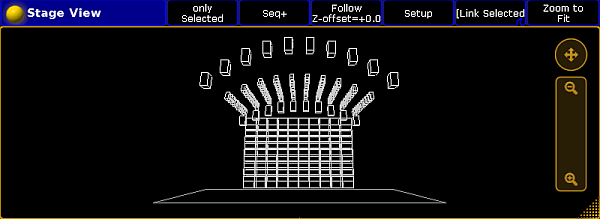
Stage view
Requirement:
Important:
Position presets have to have the values of pan tilt, since the values X, Y and Z are not supported.
-
Select all the fixtures in the fixture sheet for the pan tilt effect, press At 100 Please, and then Store and press the executor.
-
Draw a rectangle around the fixtures in the layout. The Edit Layout Element pop-up opens. Tap under Visualization Bitmap.
-
Import an image, which only displays a white bar, in the image pool.

Image white bar
Note:
It is possible to use predefined images and videos also. For more information on how to import predefined images and videos see Import an image. -
Create two position presets in the position preset pool, the first with the lowest pan 0 and tilt 30, the second position preset with pan 0 and tilt -5.
-
Program the bitmap fixture in the programmer with the following values:
- Dimmer: 100
- Images: The white bar image from the image pool, e.g., 15.
- Output: The layout including the bitmap fixture visualization, e.g., Layout 1.
- Mode: Position Preset
- VP1: Select position preset with low value
- VP2: Select position preset with high value -
Tap in the encoder bar effect layer, tap VPos (= Video Position) in the fixture sheet, turn the encoder for the x value and select Ramp Plus 10.
-
To store a sequence with the bitmap fixture, press Store and then another executor button than before.
-
Start both playbacks.
You have a pan tilt effect by using the bitmap fixture.
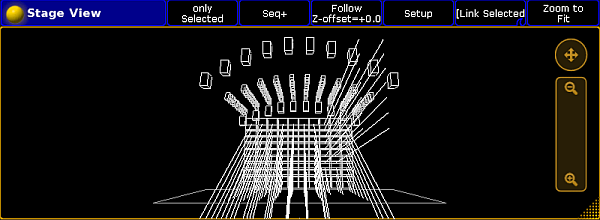
Stage view with running bitmap fixture