Desk status
To access the **Desk Status **window, tap on an empty part of a screen. This must be at least 4 columns wide and 2 rows high. Tap System and then Desk Status.
This will open the Status window.
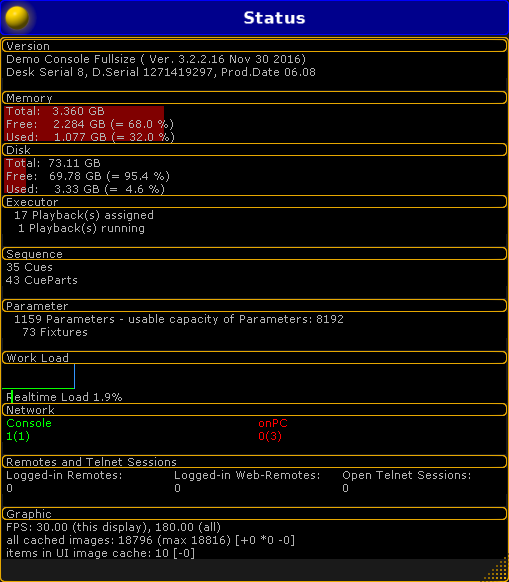
Status Window
Hint:
This window is only for information. It is not possible to make any changes in here.
The Status window displays facts about the console.
There are 10 sub categories in the window.
Version
Section titled “Version”The version section tells what type of console you are working on. It also tells the software version and its build date.
Memory
Section titled “Memory”Displays the size of the memory and how much is currently used. Both in Gigabyte and percent.
Displays the size of the hard drive and how much is currently used. Both in Gigabyte and percent.
Executor
Section titled “Executor”Displays how many playbacks are occupied and how many are currently running.
Sequence
Section titled “Sequence”Displays the total amount of recorded cues. Part cues are included.
Parameter
Section titled “Parameter”The parameter count displays how many parameters are used in the actual show; and the total capacity of unlocked parameters.
Work load
Section titled “Work load”The work load displays a graph and a percentage of how busy the desk is.
Network
Section titled “Network”Displays what is connected in the session. The number in the parentheses is the amount of devices in the MA Network Configuration. The number in front of the parentheses are the current devices in the session. If the numbers are green, the expected numbers of all MA Network devices, consoles, grandMA2 onPC, MA VPU (=Video Processing Unit), MA 3D,MA NDP (=Network Dimmer Processor), DMX Nodes, that can be part of a session is presented. If the number is red, there are less devises than expected. This means that there is not connection to all of the devices in the MA Network Configuration list.
Remotes and Telnet Sessions
Section titled “Remotes and Telnet Sessions”Displays the amount of devices that are currently logged in. It will also tell how many Telnet sessions that are open.
Graphic
Section titled “Graphic”Displays the current status of the graphic card on the device.