Change specific group colors
The following describes how to set colors in All in Order and All out of Order in Group Options.
- All in Order shows that the fixtures are selected in the same order they were initially stored in the corresponding group.
- All Out of Order shows that the fixtures are selected in a different order they were initially stored in the corresponding group.
To change the group colors in All in Order and All Out of Order:
- Open the** **pool Groups.
- Tap on an empty space on the screen. Create Basic Window opens.
- Tap Pools, then tap Groups. - Tap the yellow ball
 in the upper left corner of the Group Pool Window.
Group Options opens.
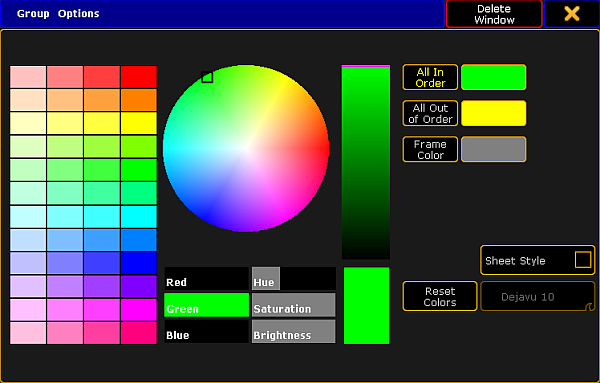
Group Options
- Tap All In Order and then choose a color from the color table or the color circle.
- The color you have chosen is displayed as a line within the pool object right above the font of the pool object. - Tap All Out of Order and then choose a color from the color table or the color circle.
- The color you have chosen is displayed as a line within the pool object right above the font of the pool object.
Let´s say we have selected the color green in All in Order and the color yellow in All Out of Order.
This is what it would look like:
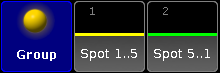
Group colors
For more information on how to reset and adjust colors, change the pool into sheet style and/or how to use the Hue, **Saturation **and the **Brightness **slider see Adjust pool options.
Important:
Some fixtures may have a red line within the pool object right above the font of the pool object. This red line is automatically generated when all fixtures or a part of fixtures are not available due to storing onto another world.
The pool options are now adjusted to your needs and are saved in your user profile.
Hint:****
You can also use the Appearance keyword to change the color of one or more pool objects.