Using the color picker
Based on the field you work in, the color picker provides the opportunity of displaying the colors of fixtures in various views.
Requirement:
- Fixtures are patched.
For more information on how to patch fixtures see Adding fixtures to your show.
Open the Color Picker
Section titled “Open the Color Picker”There are two options to open the color picker.
1. Option:
- Tap any empty space in the user-defined area.
- The pop-up Create Basic Window opens.
- Tap Other.
- Then tap Color Picker.
- The Color Picker opens.
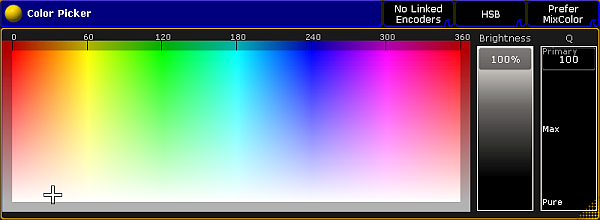
Color Picker Opened Via Create Basic Window
2. Option:
- Tap Color in the encoder bar.
- Then tap Special Dialog.
- The temporary color picker opens.
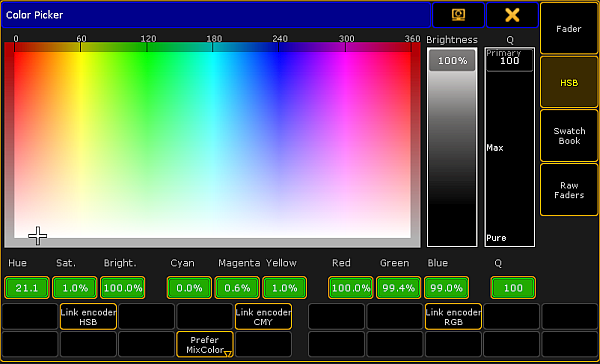
Color Picker Opened Via Special Dialog
Important:
If you open the color picker via the Special Dialog, you will see an additional bar with buttons that are not visible if you open the color picker via the dialog Create Basic Window. These buttons, however, can be enabled in the options of the color picker.
The differences of each view in special dialog are explained further down in the corresponding views.
As mentioned before the color picker consists of five views.
1. HSB:
Section titled “1. HSB:”Hint:
HSB is the abbreviation for hue, saturation and brightness.
_Color Picker – HSB _
Hue:
Is displayed in degrees and it is the horizontal axis of the screen.
Saturation:
Is displayed as a vertical axis of the screen.
Brightness:
Is displayed as an additional fader.
Q fader:
The Q fader is displayed at the far right of the screen.
Important:
The Q fader is disabled for fixtures with ColorWheel or MixColor attributes (RGB) only. Fixtures with more than three MixColor attributes enable the Q fader.
It consists of three categories:
Primary:
Represents RGB only.
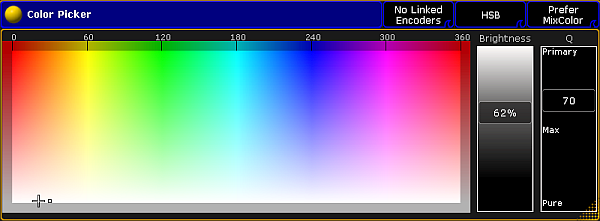
HSB – Q Fader – Category Primary
Max:
Represents a mixture of RGB and the special color attributes.
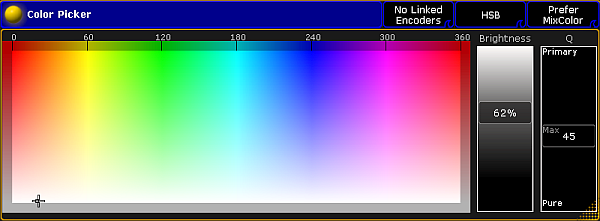
HSB – Q Fader – Category Max
Pure:
Represents a special color attribute.
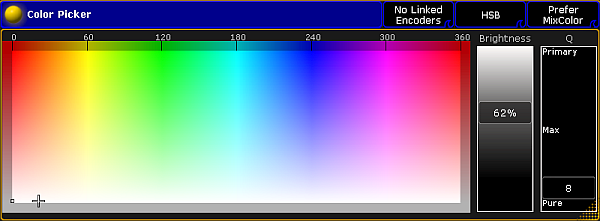
HSB – Q Fader – Category Pure
Bar In HSB – Special Dialog
Section titled “Bar In HSB – Special Dialog”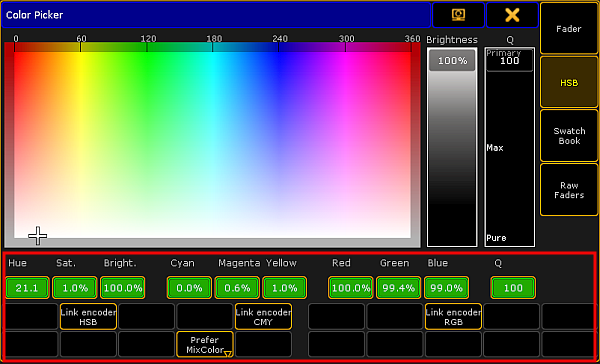
Bar Highlighted In HSB – Special Dialog
- Percentage display:
Displays the value in percentage. The corresponding color spectrum is displayed on top of the percentage.
- Link encoder HSB:
Links the three encoders starting from the left with the display of HSB.
- Link encoder CMY:
Links the three encoders starting from the left with the display of CMY.
- Link encoder RGB:
Links the three encoders starting from the left with the display of RGB.
- Prefer MixColor only:
This is usually the default. Here MixColor attributes are preferably used to blend the color.
- MixColor only:
Here only MixColor attributes are used to blend the color.
- ColorWheel only:
Here only ColorWheel attributes are used to blend the color.
2. Swatch Book
Section titled “2. Swatch Book”The swatch book displays manufacturers and their corresponding gels.
For more information on gel see the keyword Gel.
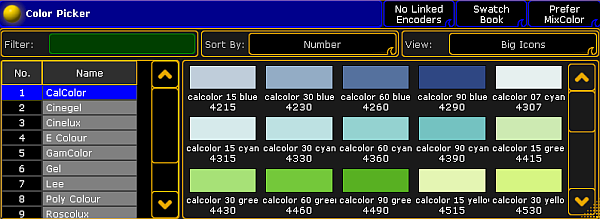
Color Picker – Swatch Book
Important:
The swatch book displays the color in RGB and RGB number.
- If you type a number into the filter on the top left, the swatch book will sort the list by the hints containing this number.
- If you type a letter into the filter, the swatch book will sort by the name of the color.
Bar In Swatch Book – Special Dialog
Section titled “Bar In Swatch Book – Special Dialog”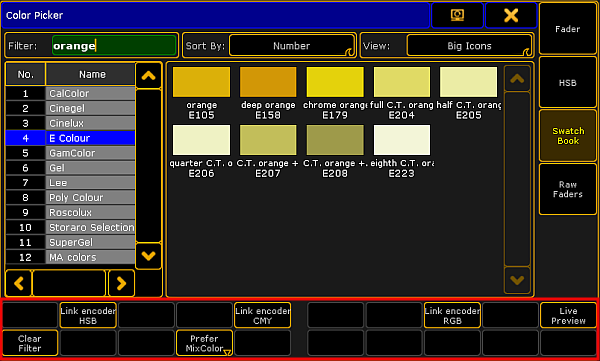
Special Dialog – Bar In Swatch Book
- Clear Filter:
Empties the filter on the top left of the dialog. - Live Preview:
If you scroll using the encoder to change colors, these colors are directly shown live.
3. Raw Faders
Section titled “3. Raw Faders”Raw faders display all MixColor attributes in a show file.
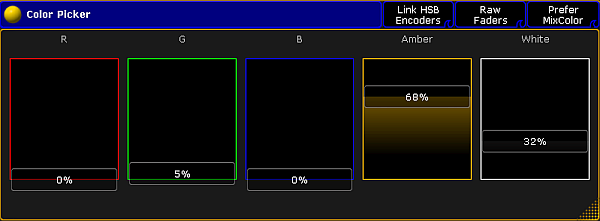
Color Picker – Raw Faders
4. Predefined Colors
Section titled “4. Predefined Colors”Predefined colors are displayed in a rod-shaped pattern in four columns.
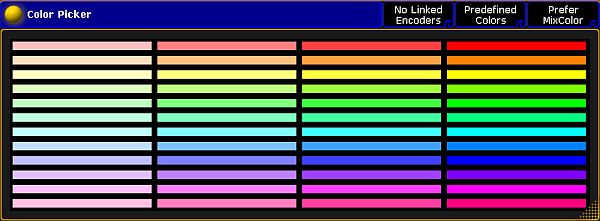
Color Picker – Predefined Colors
Important:
Predefined colors are not available in the Special Dialog.
5. Faders
Section titled “5. Faders”Faders display the three color systems – HSB, CMY and RGB along with the Q fader – in contrast to one another in form of faders.
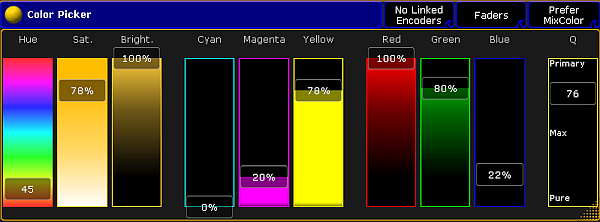
Color Picker – Faders
Options
Section titled “Options”To open the options in the color picker, tap  in the upper left corner of the window.
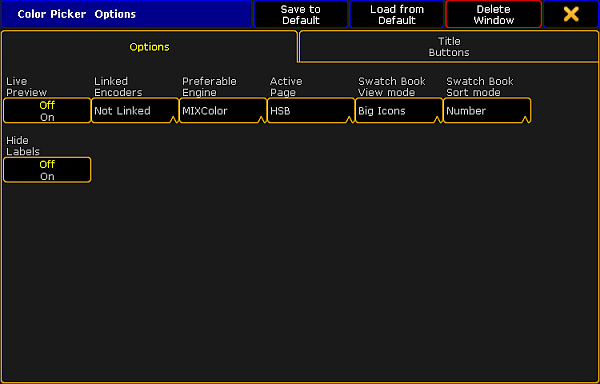
Color Picker – Options
Options display the following:
See Bar in Swatch Book – Special Dialog.
Linked Encoders:
If you tap this button, the pop-up Select Linked Encoders opens. Choose which encoders you would like to link here.
Preferable Engine:
If you tap this button, the pop-up Select Preferable Engine opens. Choose the color system you would prefer to use.
Active Page:
If you tap this button, the pop-up Select Active Page opens. Choose the view you would like to be displayed here.
Swatch Book View Mode:
If you tap this button, the pop-up Select Swatch Book View Mode opens. Choose the category you would like the Swatch Book to be displayed by.
Swatch Book Sort Mode:
If you tap this button, the pop-up Select Swatch Book Sort Mode opens. Choose the category you would like to sort the swatch book by.
Hide Labels:
If you disable this button, the values of HSB, CMY and RGB will be displayed in percentage.
Title Buttons
Section titled “Title Buttons”To open the title buttons in the color picker, tap in the upper left corner of the window.
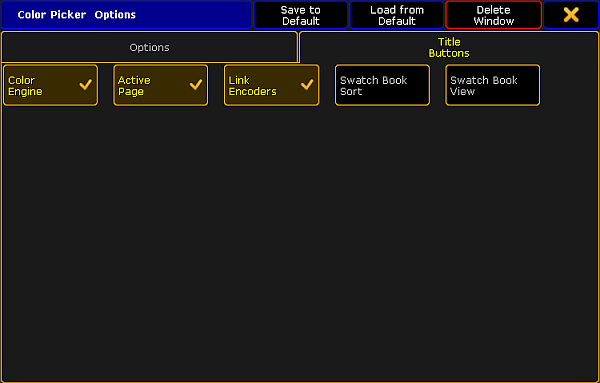
Color Picker – Title Buttons
If you enable Color Engine, Active Page and Link Encoders, these buttons will be displayed in the title bar of the view.
If you enable Swatch Book and Swatch Book View, these buttons will be displayed in the title bar in Swatch Book only.
To close the Color Picker Options, tap  in the upper right corner.
Close the Color Picker
Section titled “Close the Color Picker”To close the color picker altogether, tap in the upper left corner of the dialog and tap Delete Window.
If you opened the color picker via the special dialog, then tap in the upper right corner of the dialog.