Marker
Markers are color indicators in form of a bar, square, or a thin line. Markers are visible in:
The name column in the fixture sheet displays a maker summery of all attribute markers of the fixture.
There are the following markers there:
Red:

Red Marker
Red markers indicate active programmer values (storable).
Pink and Red:

Pink and Red Marker
_ _First Pink and then a red marker indicate active effect values in the programmer (storable).
Big Cyan:

Big Cyan Marker
Big cyan markers in the fixture sheet indicate preset values in the programmer.
Big cyan markers in the sequence tracking sheet indicate preset values in a sequence.
Small Cyan (except for the sequence tracking sheet):

Small Cyan Marker
Small cyan markers indicate preset values from a sequence.
Blue:

Blue Marker
Blue markers indicate parked values – no matter the size of the marker.
Big Pink:

Big Pink Marker
Big pink markers indicate effect values.
Small Pink:

Small Pink Marker
Small pink markers indicate stomped effect values. For more information on this effect see Stomp Keyword.
White:

White Marker
White markers indicate programmer values which cannot be stored.
Green:

Green Marker
Green markers indicate active individual (= storeable) fade times in the programmer.
Pink, Red, and Green:

Pink, Red, and Green Marker
Pink, red, and green markers in the combination from left to right indicate active effect fade times in the programmer.
Orange:

Orange Marker
Orange markers indicate active individual (= storeable) delay times in the programmer.
Pink, Red, and Orange:

Pink, Red, and Orange Marker
Pink, red, and orange markers in the combination from left to right indicate active effect delay times in the programmer.
Small Yellow:

Small Yellow Marker
Small yellow markers in the fixture sheet, channel sheet, or layout view, indicate values from a sequence.
Big Yellow:
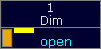
Big Yellow Marker
Big yellow markers in the sequence tracking sheet or sequence content sheet indicate stored values.
Gray:

Gray Marker
Gray markers indicate that at least one attribute of a fixture uses a DMX profile. This marker is only visible in output layers.
Purple:

Purple Marker
Purple markers indicate attributes that were calculated in the bitmap fixture.
Pool Object Marker Colors
Section titled “Pool Object Marker Colors”The pool object markers are used in pool objects and they indicate which values are stored in the pool object, in the preset pools and in the filter pools. For more information see What are Filters? and Preset Pools.
Yellow Pool Object Marker:

Yellow Pool Object Marker
Yellow pool object markers indicate that attribute values are stored in the pool object.
Important:
If a pool object just contains values , the yellow marker will not be displayed.
Pink Pool Object Marker:

Pink Pool Object Marker
Pink pool object markers indicate that effect values are stored in the pool object.
Green Pool Object Marker:

Green Pool Object Marker
Green pool object markers indicate that individual fade times are stored in the pool object.
Orange Pool Object Marker:

Orange Pool Object Marker
Orange pool object markers indicate that individual delay times are stored in the pool object.
Shapes Of Markers
Section titled “Shapes Of Markers”Bar:
Bar – Marker Shape
If a marker is displayed in form of a bar – in red or white – the value is in the programmer.
Square:
Square – Marker Shape
If a marker is displayed in form of a square – no matter the color – the value is in the playback.
Thin Line:

Thin Line – Marker Shape
If a marker is displayed in form of a thin line (here: the thin line in cyan in the upper left corner of the value) – no matter the color – the value is tracked.
Enable or Disable Markers
Section titled “Enable or Disable Markers”You can enable or disable the markers. By default, the markers are enabled.
To enable or disable the markers in the:
- Tap the yellow ball  , tap Display and then at Enable Marker tap On or Off.
- To enable or disable the marker in the Layout View, tap at the yellow ball , tap Layout Data and at Marker tap Yes or No.
The markers are enabled or disabled. To save the the settings, save the settings as default or save the view.