Create an effect in the programmer
It is possible to generate an effect in the programmer.
Requirements:
- Patch fixtures or channels.
For more information on patching see Adding fixtures to your show. - Enable Auto in the fixture or channel sheet so that it obeys the encoder bar.
To create an effect in the programmer:
- Select fixtures.
- Then, select a preset type in the preset control bar.
For more information see Preset control bar. - Then, tap Effect Layers in the layer bar.
For more information see Layers in sheets – Channel sheet and fixture sheet. - Select a layer.
- Now, select the attribute of your effect:
To select, tap and swipe Link Feature.
For more information on the different link settings see Encoder toolbar.
Important:
An effect starts as soon as it has been select, since all effect layers have default values.
- To adjust the values of a layer, turn the encoder left or right.
Important:
If you create an effect in the programmer, the layer ID does not have a red marker. ID only displays a red marker if the effect was started in the effect pool.
- Adjust the values of the preset type:
-Tap Special Dialog.
-The Effect Value opens.
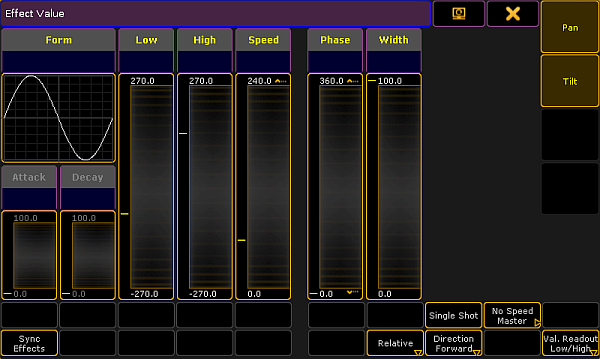
Pop-up – effect value
Hint:
This dialog looks similar to the effect editor, but has different functions.
- To deselect the attributes of the effect, tap one of the buttons on the right next to
 in the title bar.
 - If effects are set one after another, it is possible to synchronize them.
To start all effects located in the programmer, tap Sync Effects.
Hint:
Pressing  + Effect also triggers synchronization of effects.
- It is also possible to adjust the values in the effect value by tapping the yellow headings above each fader in the dialog.
-To adjust values, tap a heading.
-The calculator opens.
-Set the value.
-Values now appear in red bold font below the headings.
-This means that the values adjusted were actively taken into the programmer.
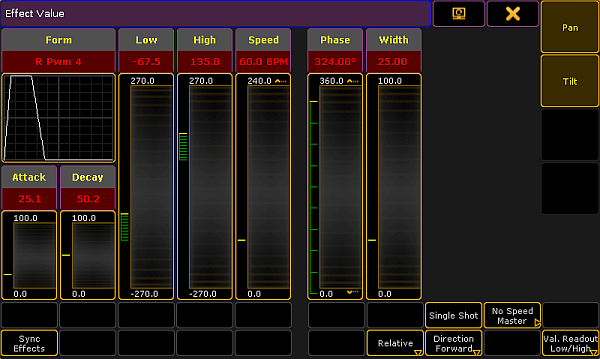
Pop-up – effect value containing programmer values
- To store the effect that was created in the programmer, press Store and then tap a cell in the effect pool or an executor button.
The effect is now saved in the pool or in a cue.