Edit plugins
Hint:
-To view the specific Lua commands and their structure, import plugin_1.lua into the plugin pool or follow this path on the grandMA2 onPC:
C:\ProgramData\MA Lighting Technologies\grandma\gma2_V_x.x.x\plugins\plugin_1.lua
-A plugin has always two files – an .xml and a .lua file.
Open the plugin pool:
- Tap System in Create Basic Window. For more information on how to open a basic window see Manage windows.
- Tap Plugin and the plugin pool opens.
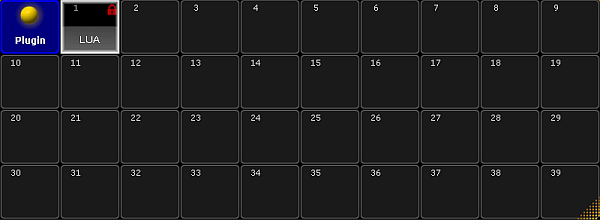
Open the plugin pool
-
Open the editor:
-Press Edit and tap an empty object in the pool.
-The window Edit Plugin opens.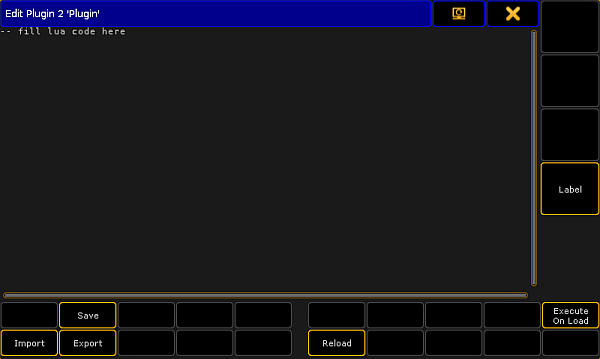
Open the plugin editor
-
To import the .xml file from the drive, tap Import and the pop-up Import Plugins opens.
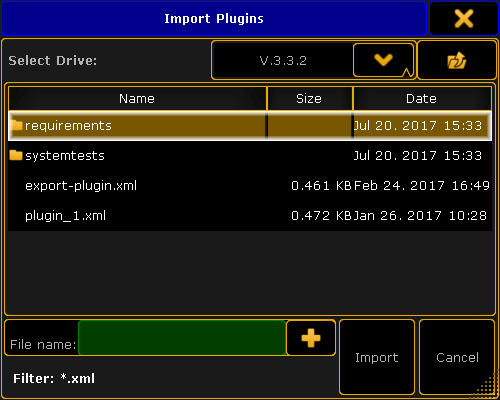
Import plugins
-Select the file and tap Import.
-To cancel the process, tap Cancel.
Hint:
It is also possible to write the Lua code directly in the editor.
-
Label the plugin:
-Tap Label and type the name of the plugin in the calculator.
-Press Please. -
To save the plugin, tap Save.
-
To export the plugin created, tap Export.
-
To reload the plugin engine, tap Reload.
-A confirmation pop-up opens.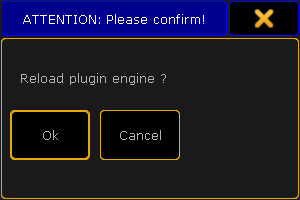
Reload the plugin engine
-To reload the engine, tap Ok.
-To cancel the process, tap Cancel. -
To enable execution on load, tap Execute on Load.
-The button is highlighted in a yellow font.
The Lua code is applied.