Edit presets
It is possible to edit the presets in two different ways.
- 1. Way of editing presets:
- Press Edit and tap the preset to be edited. The entire content of the preset will then be loaded into the live programmer.
- To see the values in an overseeable manner, open the fixture sheet and tap Prog Only in the title bar of the fixture sheet.
- The programmer opens.

Prog only
- Fixture 1 contains selective preset values and fixture type 4.1 contains global preset values.
- Press Update and subsequently press Please.
- The pop-up Update Last Object? opens.
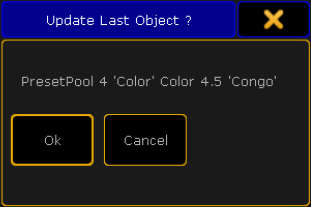
Pop-up – Update last object?
- Tap Ok.
Hint:
If you do not want to update the preset you have edited or you would like to close the pop-up, either tap Cancel or  in the upper right corner of the pop-up. To deactivate the edit mode, press Esc.
-or-
- 2. Way of editing presets:
See Update presets.