Screen layout
This topic provides information on the screen layouts of the different screens.
Screen 1
Section titled “Screen 1”The screen 1 or command screen is structured in three 3 areas starting at the bottom and ending at the top.
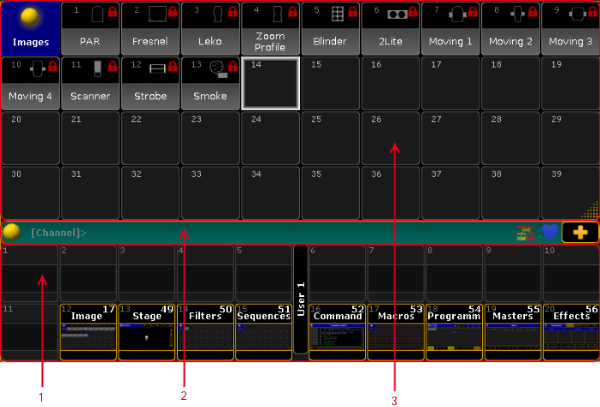
Screen Layout of Screen 1 - Command Screen
- X-Key Labels to label X-Keys.
- Command Line to enter keywords, open the command line feedback, or to open the message center.
- User Defined Area to create and arrange windows.
Screen 2
Section titled “Screen 2”The screen 2 is structured in seven areas.
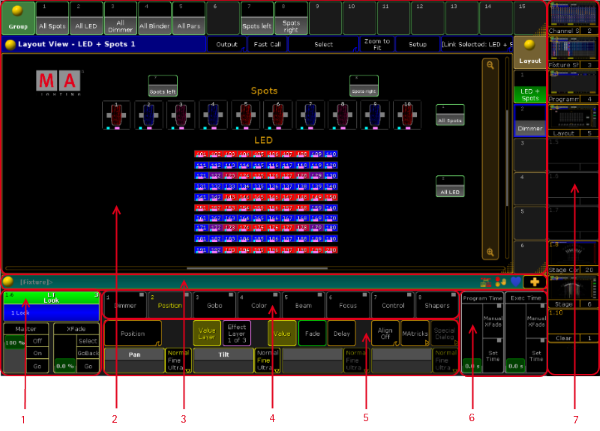
Screen Layout of Screen 2
- Master Section displays the selected executor.
- User Defined Area to create and arrange windows.
- Command Line to enter keywords, open the command line feedback, or to open the message center.
- Preset Control Bar to select a preset type.
- Encoder Toolbar to control attributes.
- Time Control to control program time and exec time.
- View Buttons to recall user defined window arrangements.
Screen 3 and Screen 4 (only grandMA2 light or grandMA2 full-size)
Section titled “Screen 3 and Screen 4 (only grandMA2 light or grandMA2 full-size)”Screen 3 and screen 4 are structured in three areas.
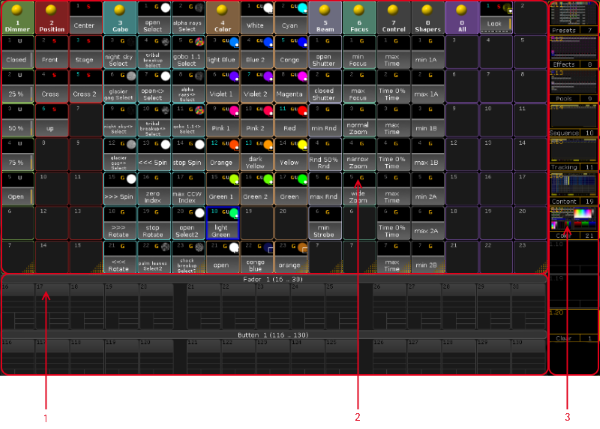
Screen Layout of Screen 3 and Screen 4
- Mini Executor Bar to get information about the content and functions of the executor.
- User defined area to create and arrange windows.
- View Buttons to recall user defined window arrangements.
Screen 5 and Screen 6 (external screens)
Section titled “Screen 5 and Screen 6 (external screens)”The external screens are structured in two areas.
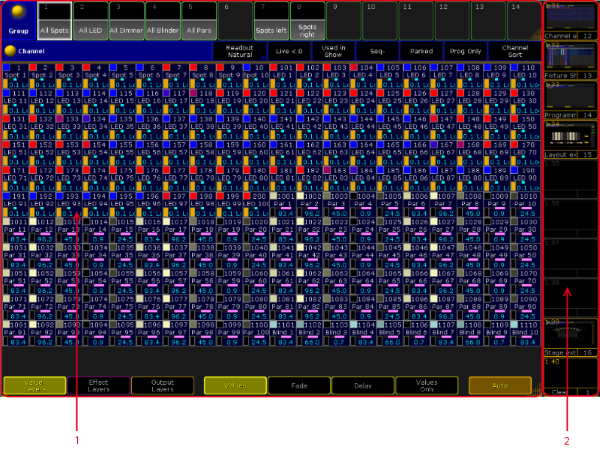
Screen Layout of Screen 5 and Screen 6
- User defined area to create and arrange windows.
- View Buttons to recall user defined window arrangements.