Change Menu Locations
Some menus can be moved between the screens.
Menus that can be moved have a display icon in the title bar:

Display icon next to the close X
Move a Menu to a Different Screen
Section titled “Move a Menu to a Different Screen”Requirement:
- Open a menu that can be moved. For instance the Playback Controls Menu.
- Tap the display icon in the title bar.
The Edit Display Preference pop-up appears:
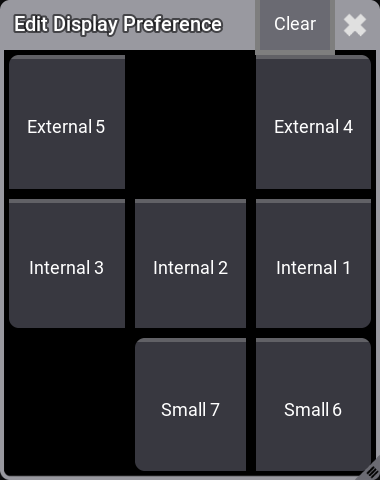
Use the Edit Display Preference pop-up to select a new location
- Tap the button corresponding to the desired screen.
 | Hint: |
Tap the Clear button or the  to cancel the move. to cancel the move. |
Move all Menus to a Screen
Section titled “Move all Menus to a Screen”It is possible to select a screen where all moveable menus open.
- Open the Menu and Display pop-up.
- In the Display pop-up tap the Set Dialog to This Display button on the screen where the menus should open.
Reset Movable Menus Screen
Section titled “Reset Movable Menus Screen”The screen selection can be reset. This is useful if a show changes from a smaller hardware platform. For instance, if the show is programmed on a grandMA3 full-size and menus are moved to screen 3 and now the show is opened on a grandMA3 light without screen 3.
- Open the Menu and Display pop-up.
- In the Display pop-up tap the Set Dialog Positions to Default button on the screen where the menus should open.