Variables
Variables can be used in macros or command line entries.
Variables have a user-defined name that the variable content replaces when executing the command.
A variable can contain three different types of data:
- Integer: A signed whole number.
- Double: A signed fixed-point number with six decimals.
- Text: Any text string.
Signed numbers can be negative numbers, for instance, -7.
Variables are typeless. This means an existing variable can be changed to contain a different type.
The name of a variable can be composed of any character. Variable names are case-sensitive.
 | Hint: |
| It is not required, but avoiding spaces in variable names is a good idea. Instead, consider using camelCase or PascalCase for variable names. |
There are two different variable scopes.
Variables can be scoped to the user or made global.
User variables can only be seen and used by the user profile that creates them, while global variables can be seen and used by all users in the session.
SetGlobalVariable and SetUserVariable
Section titled “SetGlobalVariable and SetUserVariable”Creating a variable is the same whether it is a user or global variable, but we use two different keywords to set one or the other: SetGlobalVariable or SetUserVariable.
This is the syntax:
SetGlobalVariable [“Variable_Name”] [“Content text with or without spaces”]
SetGlobalVariable [“Variable_Name”] [Integer or Double]
SetUserVariable [“Variable_Name”] [“Content text with or without spaces”]
SetUserVariable [“Variable_Name”] [Integer or Double]
 | Important: |
| Quotation marks are very important when the variable name contains spaces. If the name does not contain spaces, then they can be omitted. The same is true for text strings as the variable content. Variable content must be in quotation marks to ensure the software stores a text string. |
Examples
Section titled “Examples” | User name[Fixture]>SetUserVariable MyFavoriteNumber 9 |
| User name[Fixture]>SetUserVariable MyFavoriteText “9” |
These two commands create two variables that might seem to have the same content, but the first is a number, and the second is a text. So, it is not because of the names but the quotation marks in the second example.
Single and Double Quotation Marks
Section titled “Single and Double Quotation Marks”It might be needed to store a variable with a text string that includes something in quotation marks. This presents an issue with how the software interprets the input and how it is interpreted when the variable is called during runtime.
The variable system supports single and double quote pairs.
This means that text strings can contain quoted text as long as the other quotation marks are used.
Examples
Section titled “Examples”Working with a specifically named group (“Spots Grid”) in different contexts is necessary. A variable with “Group” and the name can be stored as a variable:
| User name[Fixture]>SetUserVariable MySpecialGroup “Group ‘Spots Grid’ ” |
Notice the single quotes around the group name and the double quotes around the variable text string. These two pairs can be reversed for the same result.
Now, the variable can be used to address the group:
| User name[Fixture]>$MySpecialGroup At 80 |
The $ is placed before the command so we can recall the variable.
This is the software’s reply:
OK: Group “Spots Grid” At 80
GetGlobalVariable and GetUserVariable
Section titled “GetGlobalVariable and GetUserVariable”The variables’ content and type can be listed using the GetGlobalVariable or GetUserVariable keywords.
These keywords need to know which variable to show. The syntax is:
GetGlobalVariable [“Variable_Name”]
GetUserVariable [“Variable_Name”]
These commands show information about the variable name, content type, and content in the Command Line Feedback window.
They only show the variables in their scope. This means that the global version shows only global variables, and the user version shows only user variables.
This assumes that the variable names are known.
The asterisk (*) wildcard can show all variables or a filtered list of variables for which a part of the name is known.
Examples
Section titled “Examples”The current content of the variable called “MySpecialGroup” can be shown using this command:
| User name[Fixture]>GetUserVariable MySpecialGroup |
This is the feedback in the command line window:
“MySpecialGroup”: Type = Text, Value = “Group ‘Spots Grid’ “
OK: GetUserVariable “MySpecialGroup”
The following example shows a list of all the global variables where the name contains the word “Our”:
| User name[Fixture]>GetUserVariable *ur* |
The “O” is replaced with an asterisk to ensure the variables beginning with “Our” are also shown. The asterisk wildcard at the beginning indicates that there must be additional letters before the letters we specify. In reality, the example will also show variables beginning with “Hour” or, in fact, any variable with “ur” somewhere in its name. To specify variables starting with “Our,” use the following example:
| User name[Fixture]>GetUserVariable Our* |
This example shows all the user variables:
| User name[Fixture]>GetUserVariable * |
Use Variables
Section titled “Use Variables”Variables are used when the variable’s value is needed.
The following variable was used in a previous example:
| User name[Fixture]>$MySpecialGroup At 80 |
The variable’s text string (“Group ‘Spots Grid’ ”) replaces the $MySpecialGroup. This works because the variable contains a text string with commands.
| Important: |
| Using quotation marks when using variables is essential and makes a difference. |
If the variable is used with quotation marks:
| User name[Fixture]>$“MySpecialGroup” At 80 |
This will fail because the content of the variable is explicitly called as a string, and the resulting feedback is:
Illegal object: Fixture “Group ‘Spots Grid’” At 80
The software tries to use the variable content as a text string and does not interpret it as a command.
This might be useful in other cases. When the variable name contains a text string that should be used as text, it must be in quotation marks. See the example below.
Example
Section titled “Example”This example uses a variable that contains the name of a group:
| User name[Fixture]>SetUserVariable MyGroupName “Spots Grid” |
Now, this variable can be used where the text would be used otherwise:
| User name[Fixture]>Group $“MyGroupName” At 80 |
It will fail If the quotation marks are omitted:
| User name[Fixture]>Group $MyGroupName At 80 |
Illegal object: Group “Spots” Grid At 80
The text string is interpreted as a command.
Example
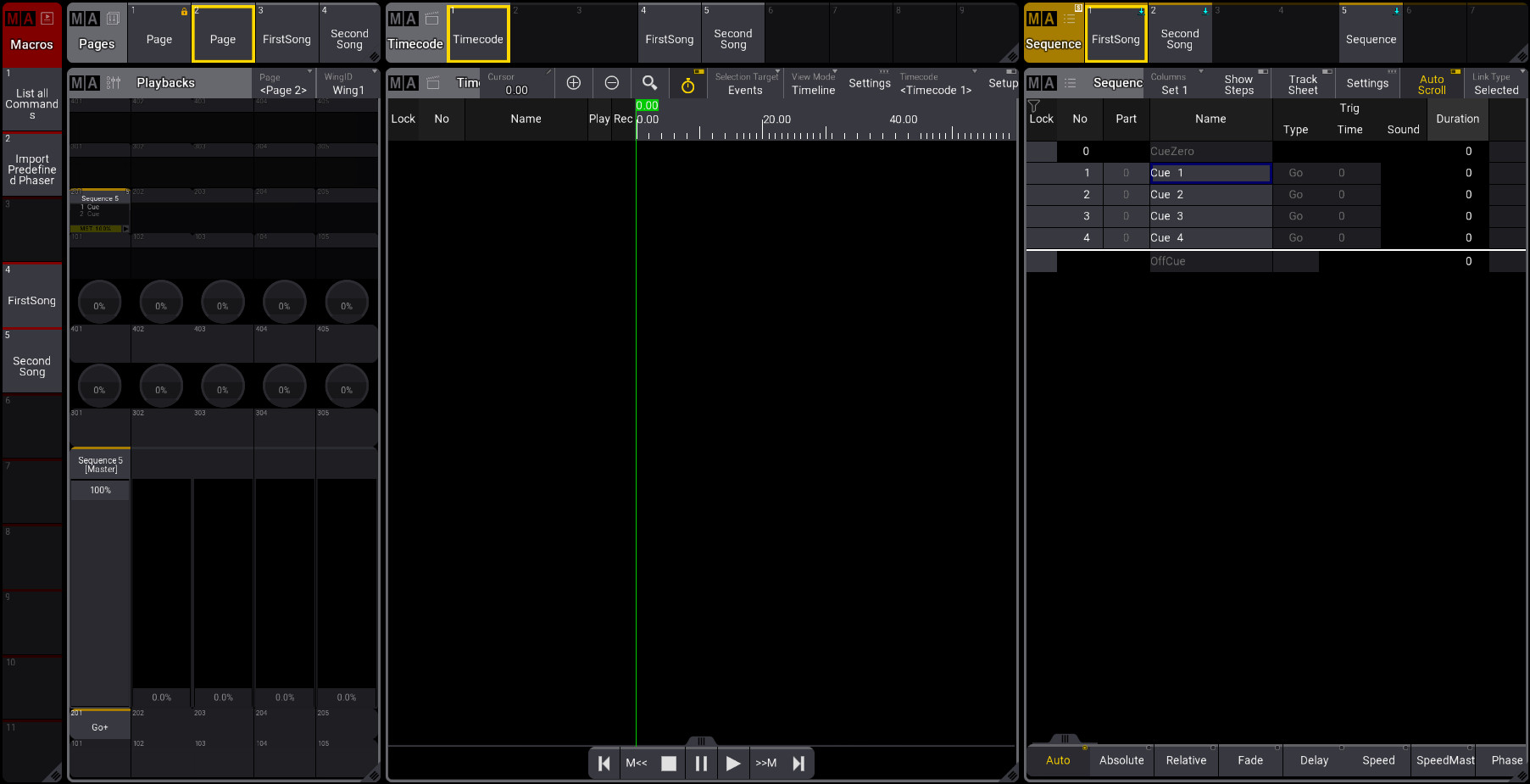
Section titled “Example”Let’s assume you are running a musical show with multiple songs that will run off timecode.
The following macro example creates a variable that prepares the desk for each song.
Opened windows requirement:
- Macro Pool
- Pages Pool
- Timecode Pool
- Sequence Pool
- Playbacks
- Timecode Viewer
- Sequence Sheet
It could look like this: