QLab
QLab is sound, video, and lighting control for macOS by qlab.app.
QLab is fairly simple to use with OSC. The QLab network settings are shown below.
To configure the network:
-
Click
 in the bottom right corner of the window. The workspace settings pop-up opens.
 -
Click Network. The network setting opens:
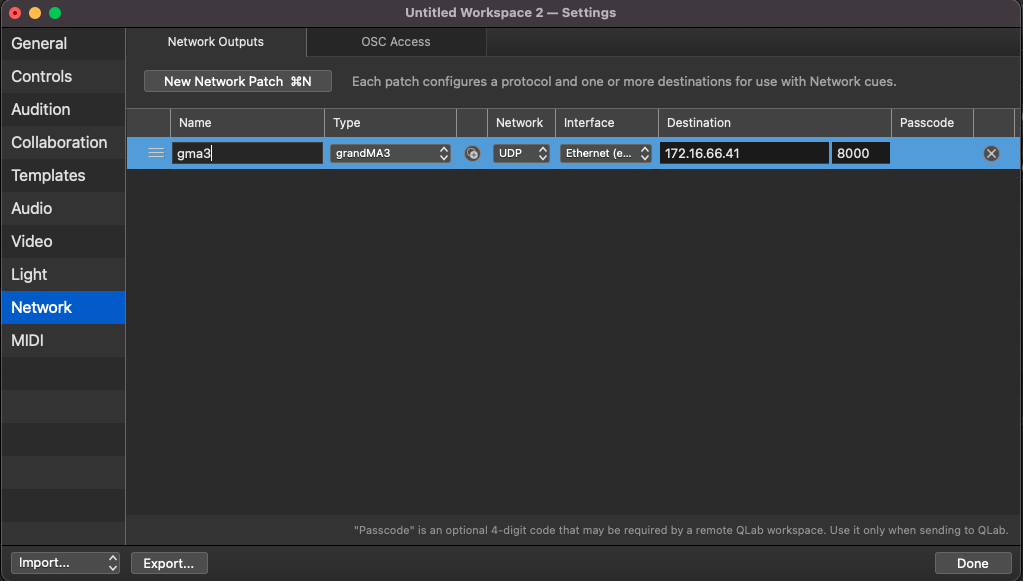
QLab - Network Settings
-
Set a Name, for example, gma3.
-
Select the Type, grandMA3.
-
Select the Network protocol.
-
Select the Interface. The network interface on your computer connected to the grandMA3 system.
-
Select the Destination.
- The IP address of the grandMA3 system.
- The Port should match the setting in the OSC menu of the grandMA3 system. The default is 8000.
-
The Passcode should be empty.
-
Click Done. The network is configured.
 | Hint: |
| Make sure you use the same IP range for communication between grandMA3 and Qlab. For more information, see Interfaces and IP. |
Example 1
To configure a cue to trigger the grandMA3 system:
- Click the Network icon. A new cue is generated.
- Click the newly generated cue. The cue settings open.
- Click the Settings tab. The settings mask opens.
- Set the Patch to the configured network configuration; in our case, it is gma3.
- Set the Category to Command line control.
- Set Use Prefix to Yes.
- Set a Prefix, such as gma3.
- Set a Command, such as Go Sequence 2
- Click Send. The command is sent.
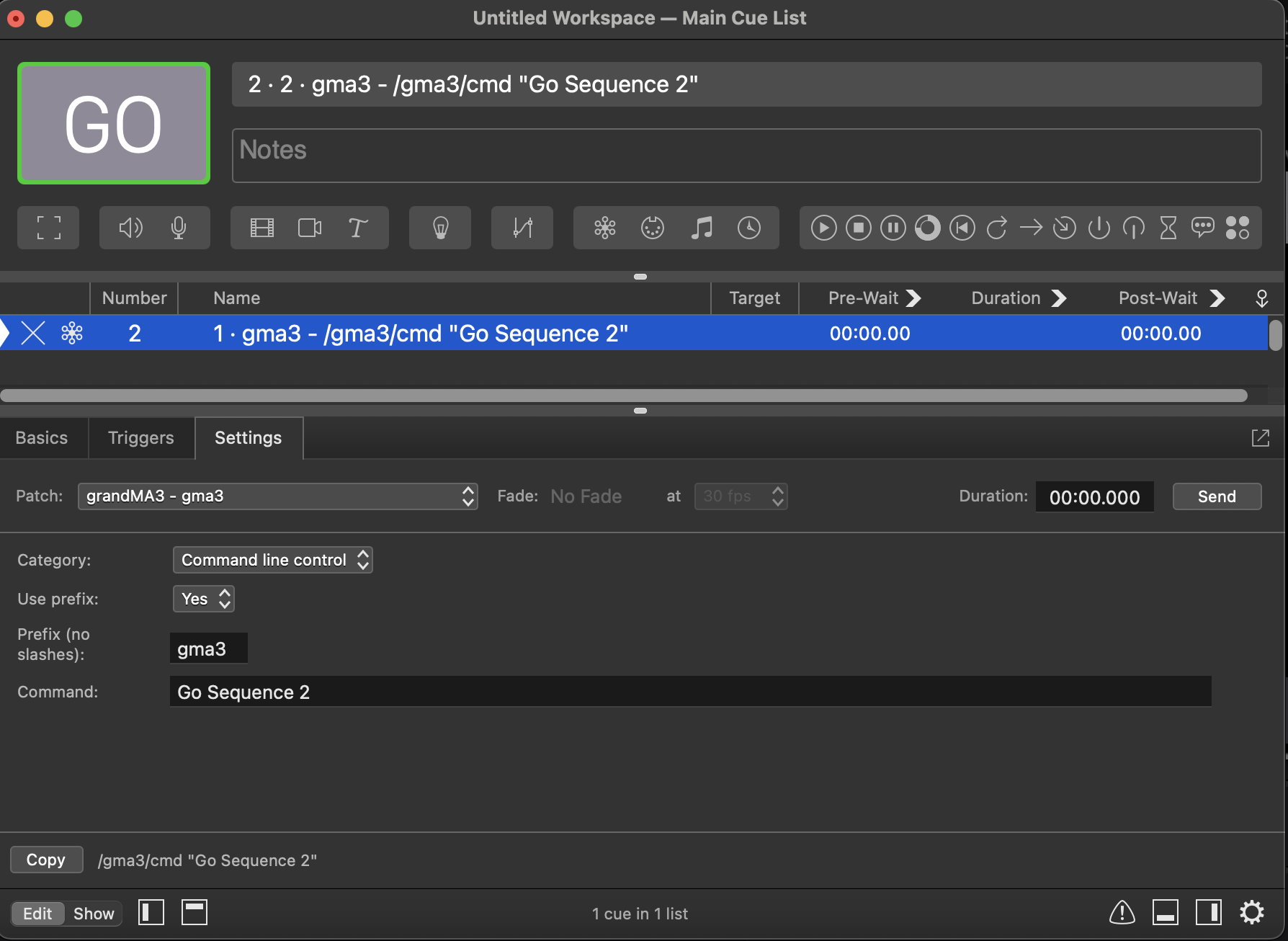
QLab - Cue Settings