Uninstalling Previous Versions of grandMA3 onPC (macOS)
Unlike other macOS applications, previous versions of grandMA3 onPC are not completely removed when the application bundle is deleted from the Applications folder.
Additional version-specific files are stored inside the MALightingTechnology folder in the user’s home directory.
 | Important: Before uninstalling a previous version, make sure that any required show files, user profiles, plugins, fixtures, or other custom files have been saved or backed up. |
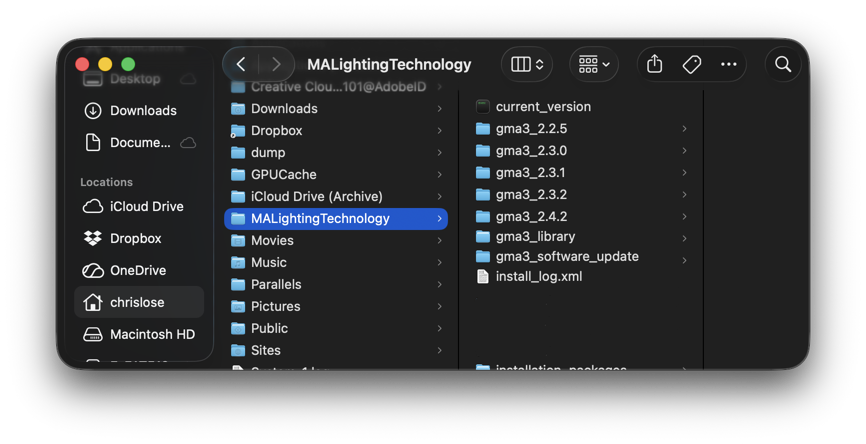
Home - MALightingTechnology
To fully remove older versions of grandMA3 onPC from a macOS system, follow these steps:
1. In the Finder, open the Applications folder.
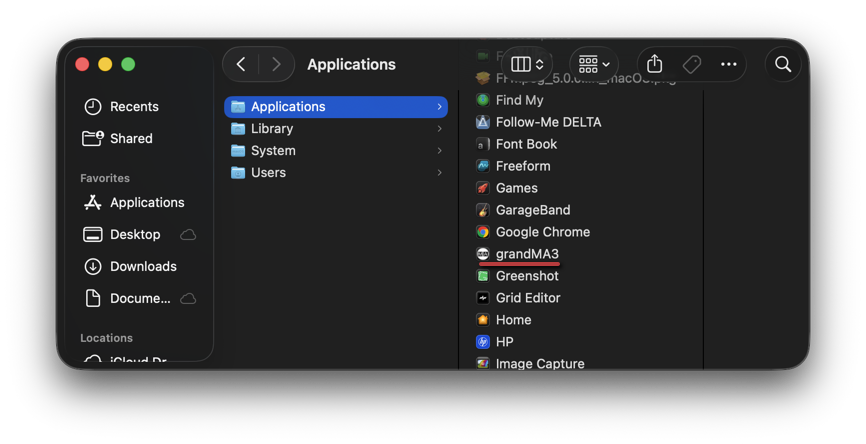
Applications
2. Right-click the grandMA3 application.
3. Select Show Package Contents.
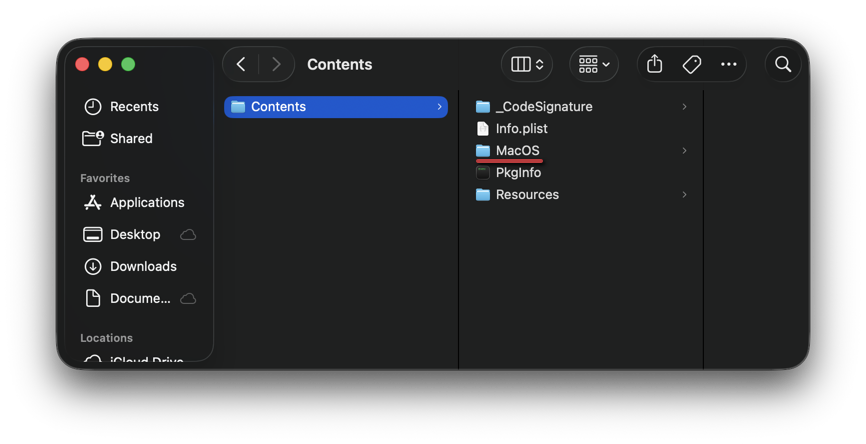
Contents
4. Open the following folders in order:
- Contents
- MacOS
5. Locate the folders corresponding to previously installed grandMA3 versions.
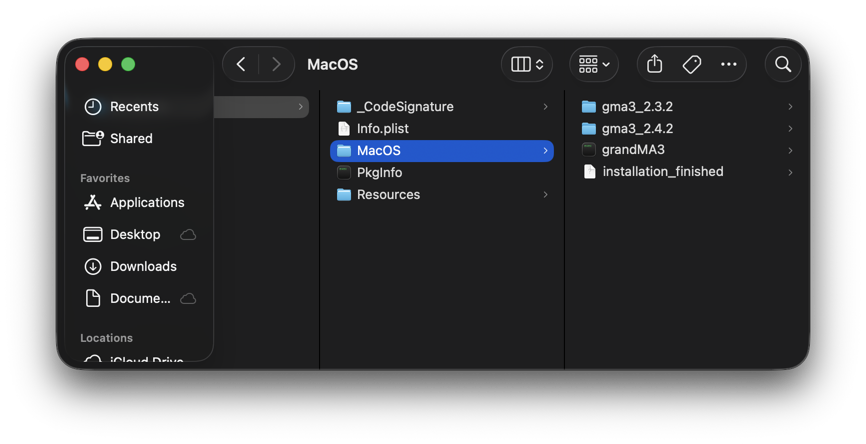
MacOS
6. Delete the folders for the versions you want to remove.
Only the selected version folders are removed. The currently installed grandMA3 application and shared user data remain unchanged.
Deleting the MALightingTechnology folder entirely is not recommended unless all installed grandMA3 versions and related files should be removed from the system.
| Important: |
| There is no separate uninstaller application for grandMA3 onPC on macOS. Removing the application from the Applications folder only deletes the visible application bundle and does not automatically remove older installed versions stored inside the application package. |