Temporary Filtering
Certain menus and windows, such as the Patch Menu, the Agenda window, or the Layout Editor, allow you to temporarily filter and search for specific terms in the grid.
 | Hint: |
| You can use multiple column filters simultaneously to refine the results. |
- The filter area is displayed as a yellow row between the header row and the grid’s first row. Tapping
 in the window title bar enables or disables the filter area.
 - The
 in the filter area marks text input fields and the three dots (…) mark the selection fields.
 - Applied filters are indicated with a yellow in the header of the corresponding column.
- To delete applied filters, tap
 in the title bar or close the corresponding window.
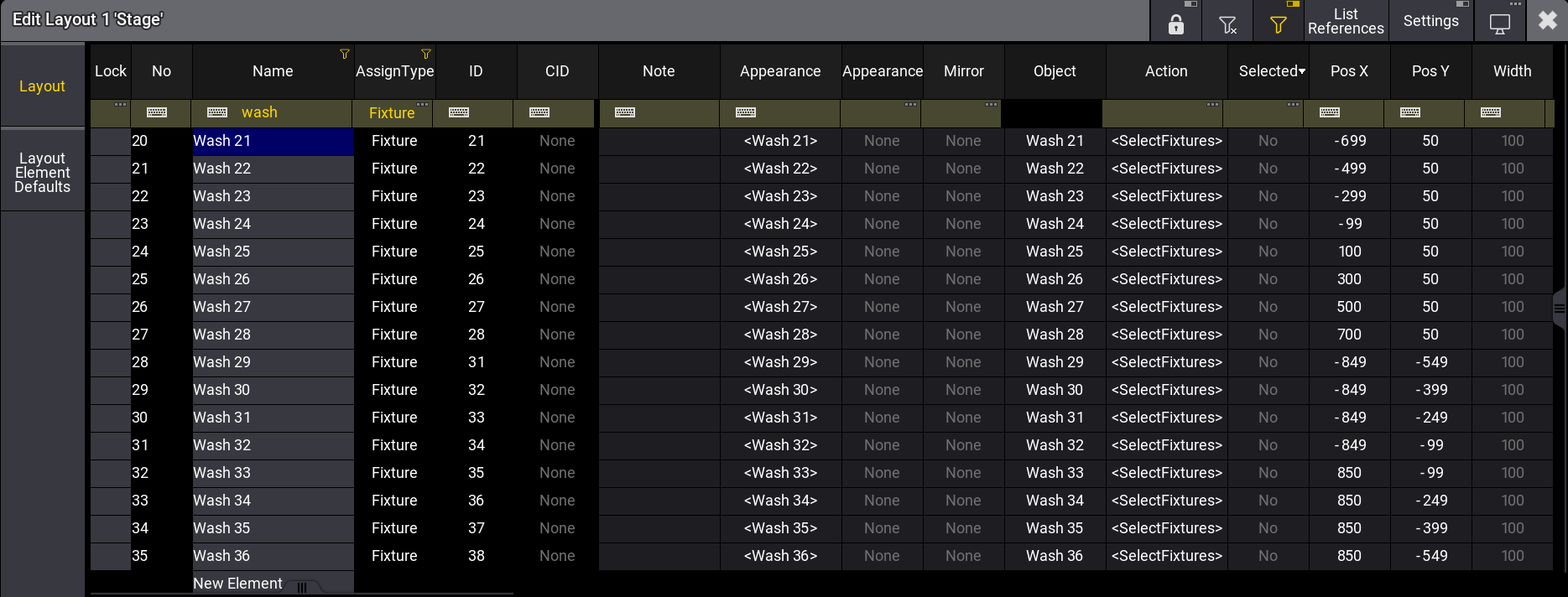
Edit Layout - Filter
Example
Section titled “Example”The following video gives you an overview.
To select a filter in the Layout Editor:
- Open the grandMA3 Demoshow.
 Paste to Command Line
 - Type Edit Layout 1 into the command line and then press Please. The editor opens. For more information about Layout Editor, see Edit Layout.
- Make sure is enabled in the title bar.
- Tap … in the Assign Type column. A pop-up opens.
- Select Fixture. The pop-up closes, and the grid shows only the rows with Assign Type set to Fixture.
To use the text input field filter in the Layout Editor:
- Follow steps 1-3 from above.
- Tap to clear all filters.
- Tap in the Name column. A text input field opens.
- Type Wash and press Please. The pop-up closes, and the grid displays rows with “Wash” in their names.
or
- Tap the area to the right of the in the Name column. A text cursor is set.
- Start typing. The Name column is filtered as you type.
| Hint: |
| If you disable the filter area () while a filter is set and then enable it again, the previously set filter will still be active. |