Update the Software
Every grandMA3 device is delivered with the latest version of the grandMA3 software.
All devices in a network with software versions higher than 1.0 can see and update each other.
This is to provide information on how to update or downgrade the grandMA3 software, if needed. For more information, see Network Update.
To check which version your device is currently running, use the Version keyword on the command line (this does not work with PUs and Nodes).
Check for Updates and Download the Latest Version
Section titled “Check for Updates and Download the Latest Version”To check if there is a new grandMA3 software update:
- Go to www.malighting.com, click **Downloads. **
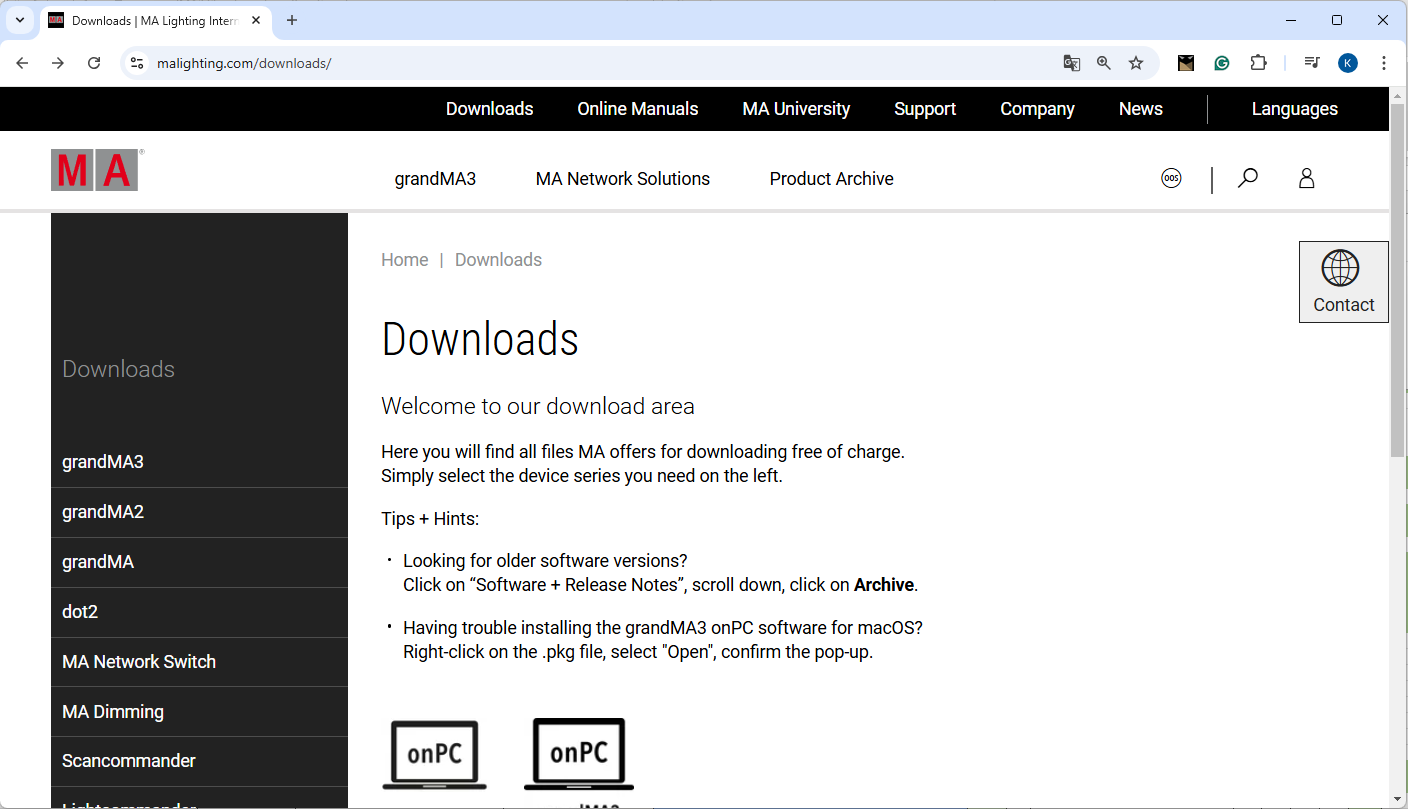
Website malighting.com Downloads
- Click grandMA3 in the bar on the left.
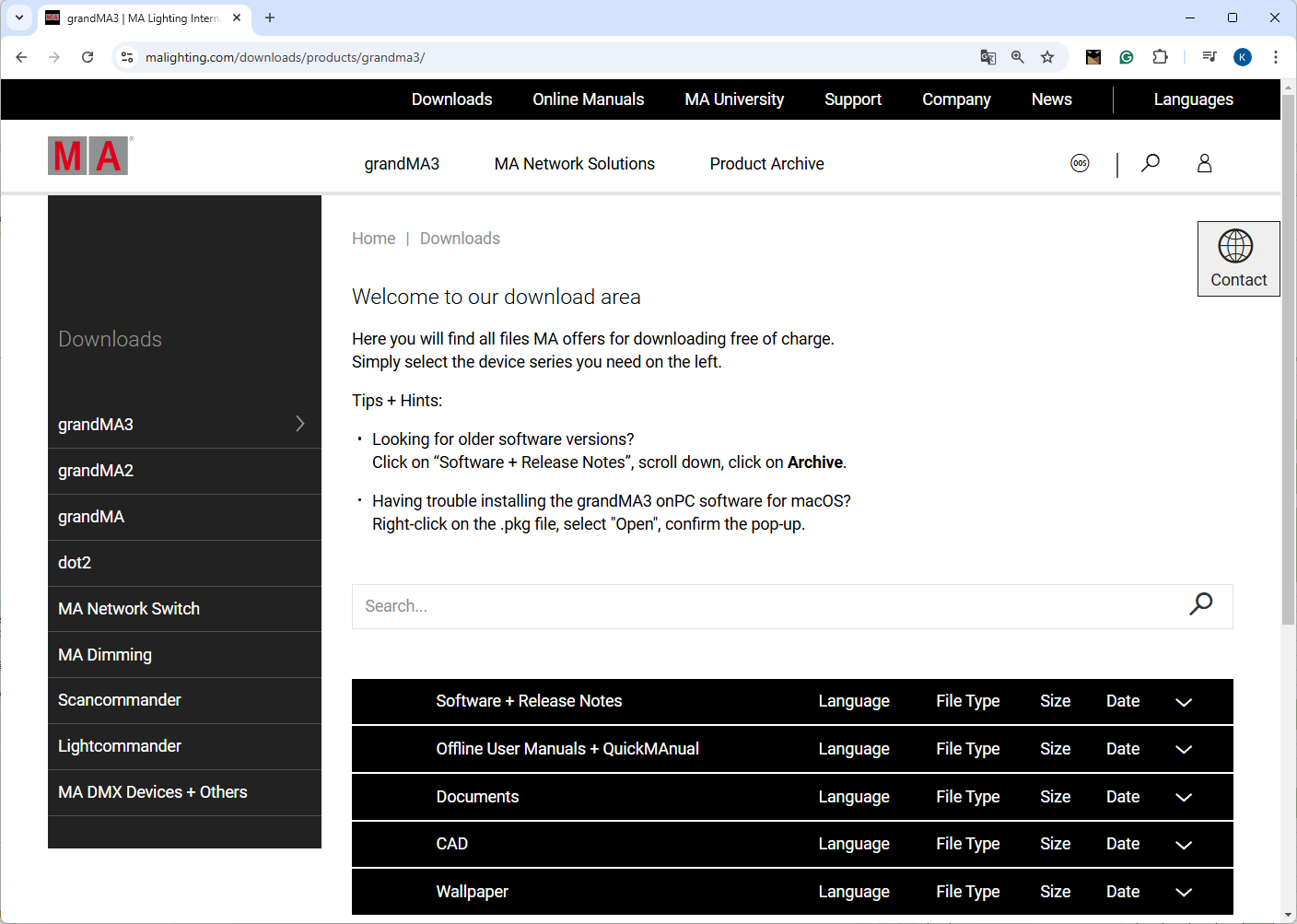
grandMA3 section
- Click Software + Release Notes to find the latest software version.
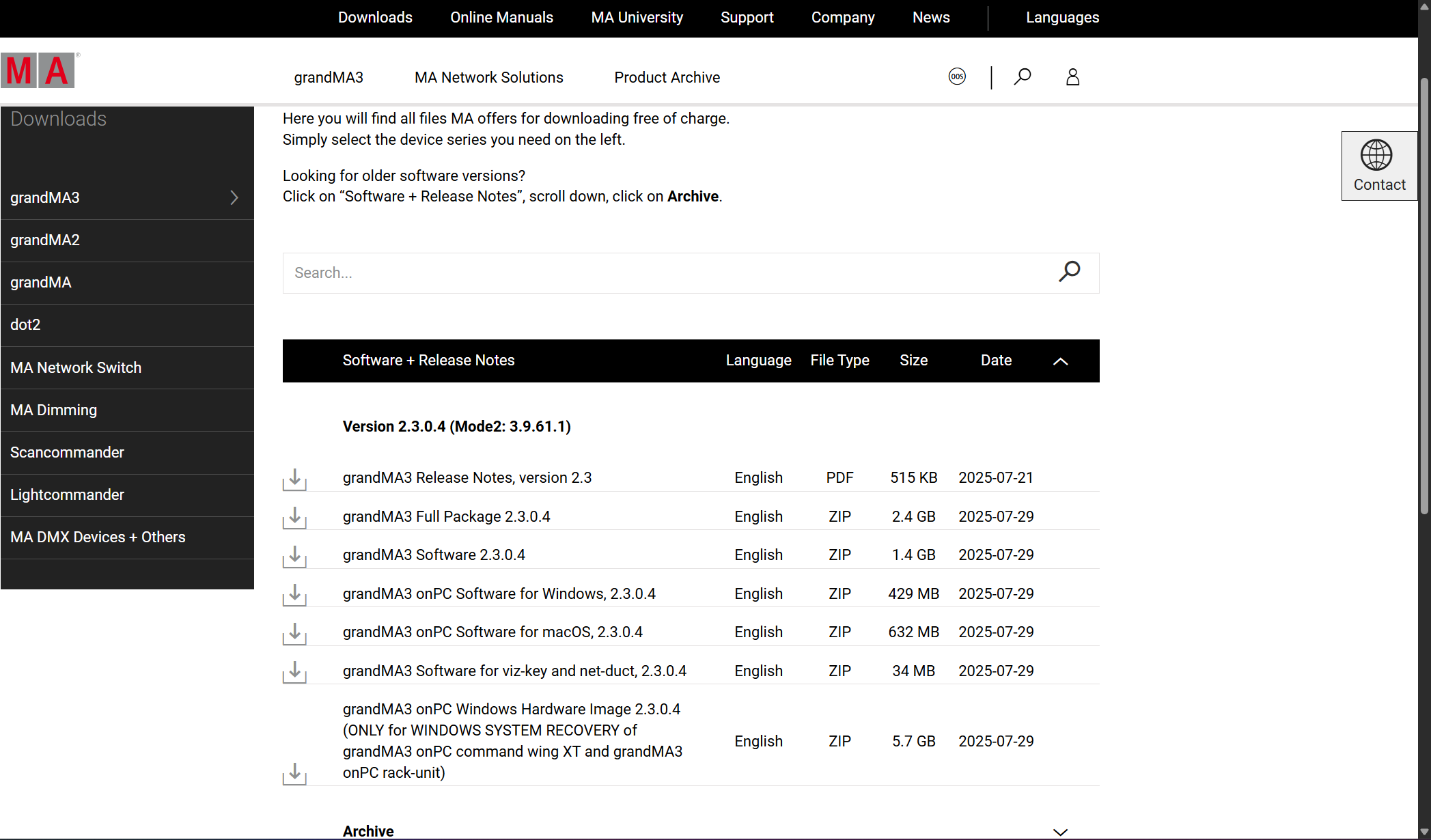
grandMA3 Software section
- Click the current version to download the desired installation package. The download process starts.
Available Installation Packages
Section titled “Available Installation Packages”There are six installation packages available, as shown in the table below:
| Software / Package | Device |
|---|---|
| grandMA3 Software x.x.x.x / grandMA3_stick_vx.x.x.x.zip | Console, RPU, processing unit, xPort Node, and I/O Node |
| grandMA3 onPC Software x.x.x.x for windows / grandMA3_onPC_win_vx.x.x.x.zip | Windows operating systems, e.g., PC or laptop, command wing XT, rack-unit, viz-key |
| grandMA3 onPC Software x.x.x.x for macOS / grandMA3_onPC_mac_vx.x.x.x.zip | macOS |
| grandMA3 Software x.x.x.x for grandMA3 viz-key, grandMA3 net duct / grandMA3_viz_key_net_duct_vx.x.x.x.zip | viz-key only, grandMA3 net duct |
| grandMA3 Full Package / grandMA3_vx.x.x.x_full_package.zip | Contains all the installation packages listed above (_stick, _onPC_win, _onPC_macOS, _viz_key_net_duct) |
| grandMA3 onPC Windows Hardware Image x.x.x.x / grandMA3_Windows_Hardware_Image_vx.x.x.x.zip | Windows system recovery of command wing XT and rack-unit, including grandMA3 onPC |
 | Important: |
| For network updates, the target software installation package must also be downloaded. For example, when updating a console via grandMA3 onPC. |
Store the Installation Packages
Section titled “Store the Installation Packages ”All files for each device type are included in the corresponding zip-file.
To update the software via network from an onPC station:
- Open the installation package zip-file.
- Open the ma folder:
- For Windows systems, copy the files from the ma folder into the directory C:\ProgramData\MALightingTechnology\installation_packages.
- On macOS, copy the files from the ma folder to the directory ~/MALightingTechnology/installation_packages.
| Important: |
| Do not unzip the installation package, simply copy the zipped files from the MA folder to the installation_packages directory. |
To create a USB flash drive containing all the installation files, see Update grandMA3 Consoles.
- For information on installing windows grandMA3 onPC, see Windows™® Installation.
- For information about macOS grandMA3onPC installation, see macOS® Installation.
Follow all the onscreen instructions that appear during the update.
Download an Older Version
Section titled “Download an Older Version”To downgrade a grandMA3 device to an older software version, e.g., in a permanent installation, follow these steps:
- Follow steps 1 through 3 above.
- Scroll down and click Archive to find older software versions.
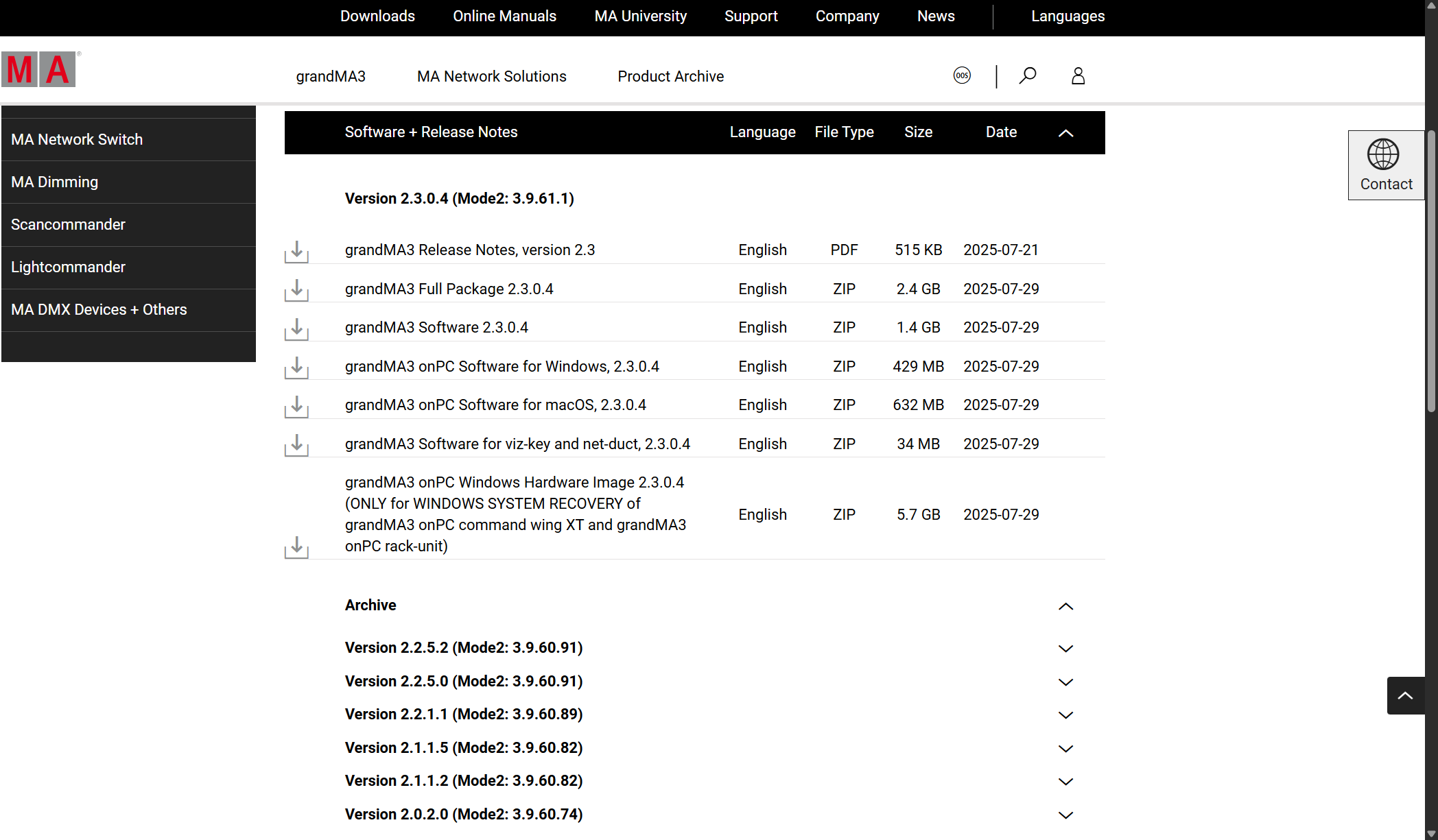
grandMA3 Software archive
To open the folder, click the desired version, e.g. Version 2.1.1.2.
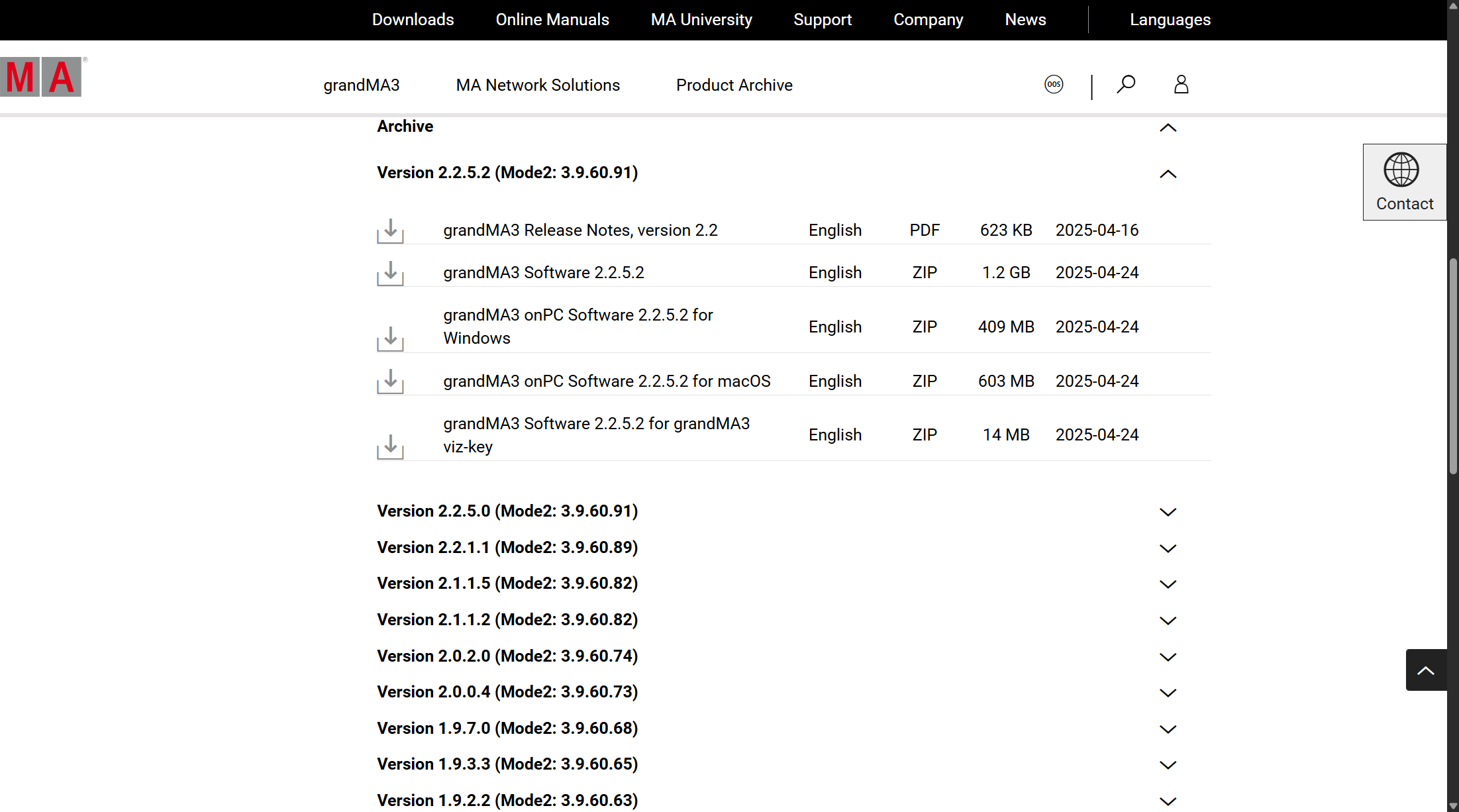
grandMA3 Software archive versions
The download process starts.