Date and Time
Sets date and time.
To access Date and Time:
- Press Menu.
- Tap Settings. A drop-down menu opens.
- Tap**** Date and Time. The Date and Time window opens.
Session Time
Section titled “Session Time”The Session Time tab provides an overview about the current Time, Date and Location.
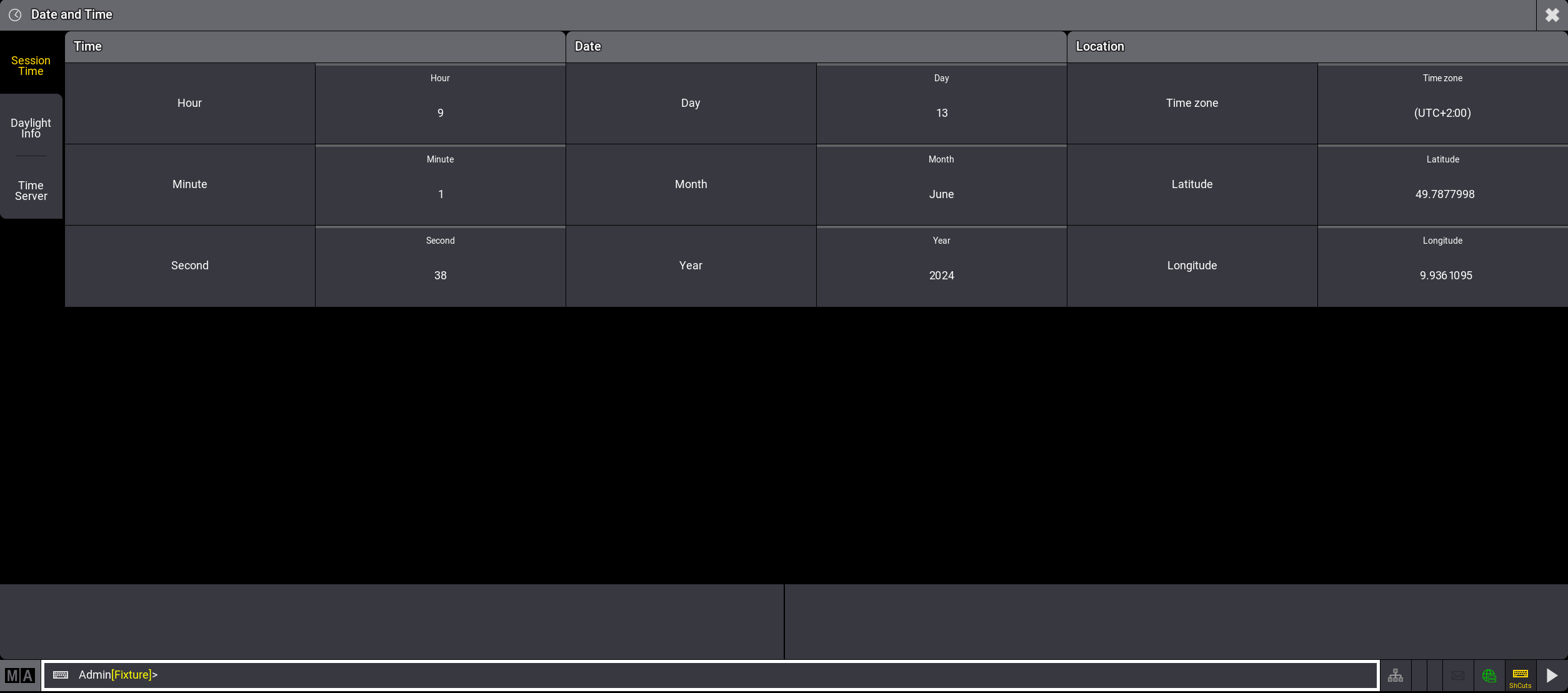
Date and Time window with Session Time settings
Date and Time:
Section titled “Date and Time:”To set date and time manually:
- Go to Session Time.
- Tap the buttons with a gray title bar. The calculator opens.
- Enter values and tap Please.
Date and time are set.
 | Important: |
| If Date and Time is NTP synchronized, it is not possible to adjust the values manually. Go to the Time Server tab first. Set Extern TimeSync Mode to None. Now go back to Session Time and adjust manually. |
 | Restriction: |
| When using grandMA3 onPC with m****acOS, avoid changing the system time in the general system settings of macOS as it can cause critical time conflicts in different parts of the onPC software. Adjusting the session time in the onPC software with macOS is safe. |
Location:
Section titled “Location:”The time zone refers to the international time standard UTC.
- To enter the current location, tap each of the buttons –Timezone, Longitude, Latitude – on the right of the column Location.
The calculator opens. - Enter values and tap Please.
Location is set.
Daylight Info
Section titled “Daylight Info”The Daylight Info tab, displays yesterday’s, today’s, and tomorrow’s dawn, sunrise, sunset, and dusk.
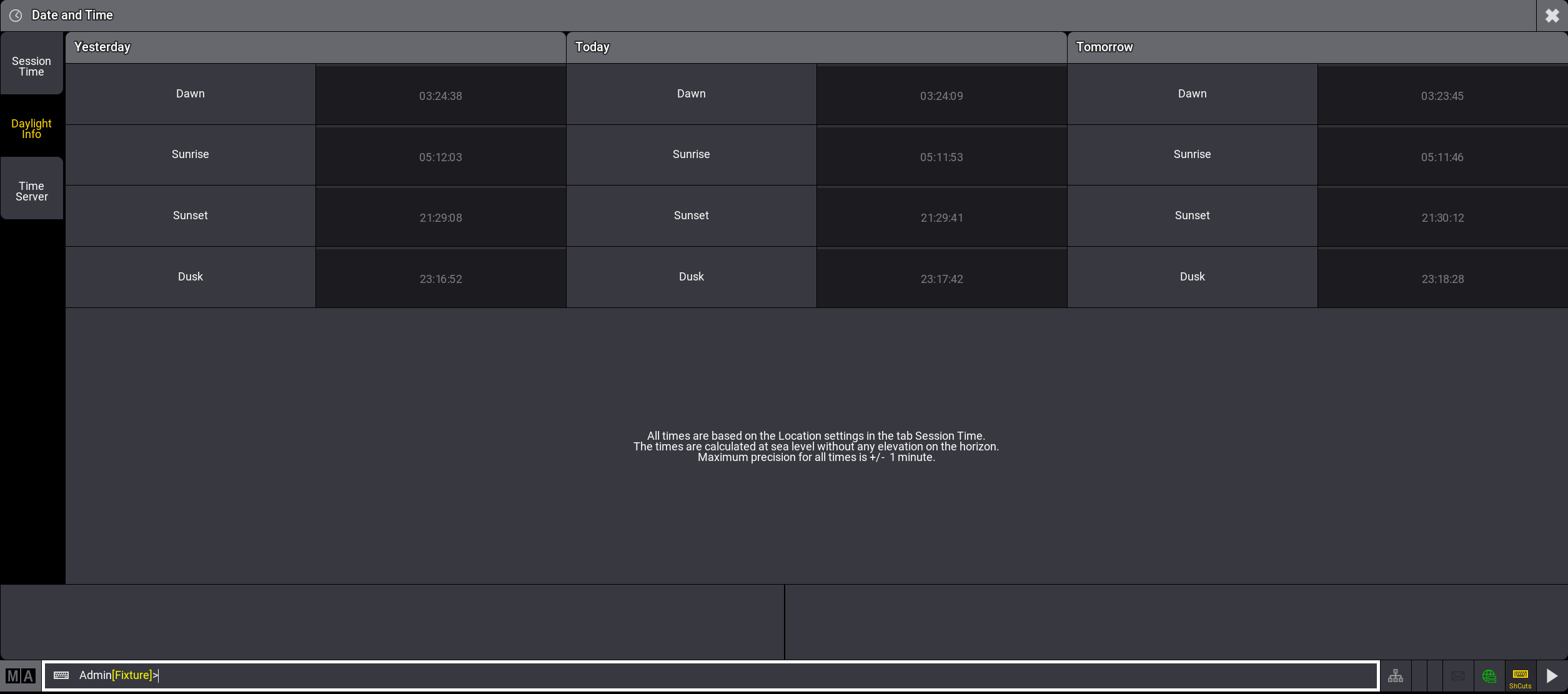
Date and Time window with Daylight Info settings
All times are based on the Location settings in the tab Session Time. The times are calculated at sea level without any elevation on the horizon. Maximum precision for all times is +/- 1 minute. Dawn and Dusk are calculated using nautical twilight.
Time Server
Section titled “Time Server”The Time Server tab allows you to synchronize the Session Time with an external time source through Network Time Protocol (NTP).
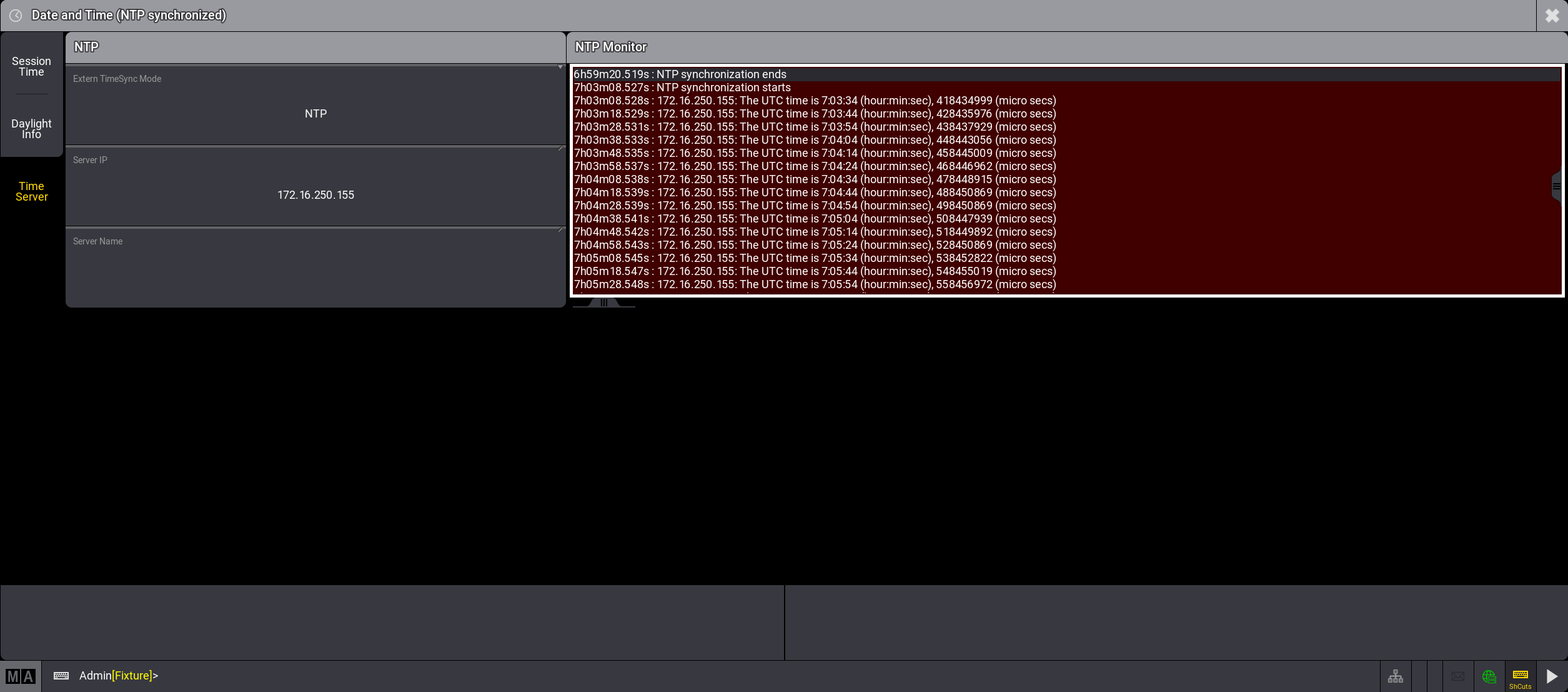
Date and Time window with Time Server settings and NTP Monitor
The Time Server tab offers several options:
- Extern TimeSync Mode: When set to NTP, Time and Date are synchronized with the NTP settings referring to Server IP and Server Name. Setting it to None, Date and Time can be set manually in the Session Time.
- Server IP: Tap on Server IP. A calculator opens. Type in any IP address from an NTP server. The NTP server now provides Date and Time.
- Server Name: Type in any Server Name of an NTP server. This displays the Server IP automatically. The NTP server now provides Date and Time.
The NTP Monitor on the right side displays details about the server’s connection.
| Important: |
| The NTP server delivers always Coordinated Universal Time (UTC +0:00). To match it to your local time, adjust the Time zone in the Session Time tab. |
| Important: |
| The IdleMaster or GlobalMaster station determines the time of the session, even if other stations in the session have different NTP servers set up. |