What is Tracking
Tracking is the principle of storing only the changes in the cues.
If a fixture is turned On in blue, it will stay like this until it is told to change. It does not matter how many cues there are between being told to turn On and the cue where it is told to turn Off.
Tracking is the principle that once a parameter has a value, it stays there until it is told to go somewhere else or released from a sequence.
The following example explores the basic tracking principles and describes some of the other basic related functions after the example. Four tracking principles have their own topics: Cue Only, Tracking Distance, Tracking Shield, and Break.
Example
Section titled “Example”Fixture number 1 is stored in blue color, at 100% dimmer value in cue number 1. If there are 6 cues and fixture number 1 does not get any new information, it will stay at 100% in blue color in all 6 cues.
The best way to see this information is to turn the Sequence Sheet into tracking sheet mode. This can be activated using the Track Sheet setting either in the title bar or the window settings.
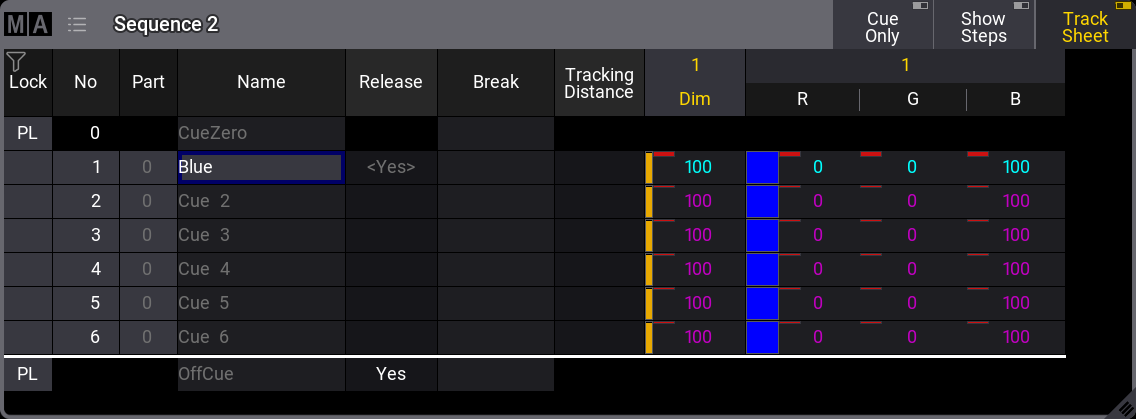
A sequence with 6 cues - fixture 1 stored values in cue 1
Notice the difference in text color between the values in cue 1 and the others. The magenta text color indicates that the value is not stored in the cues but is a tracked value from a previous cue.
Now, change the fixture’s color to red and set the dimmer to 100% again.
Store this in cues 4 and 5 (using the Merge option). Now it looks like this:
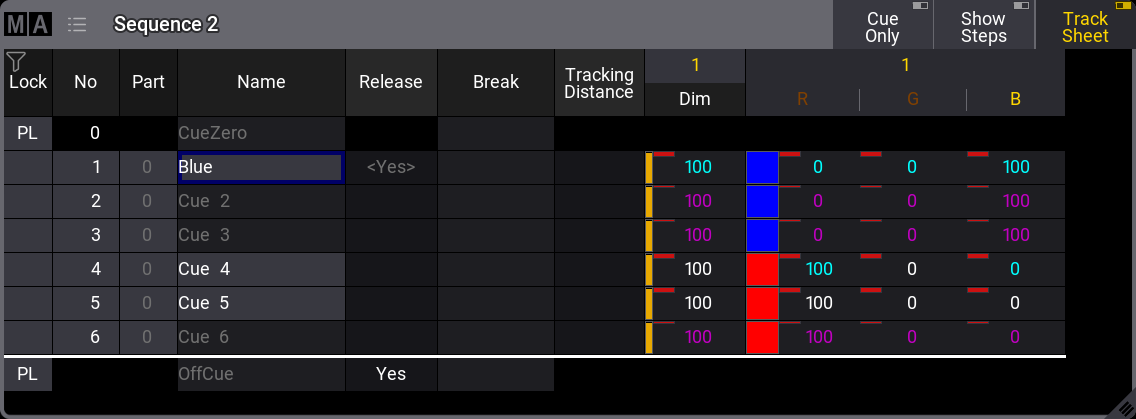
A sequence with 6 cues - fixture 1 has a new color in cues 4 and 5 - blocked values
The text color of the dimmer value is now white in cues 4 and 5. All the color values are also white in cue 5. This indicates that the values are stored here, but are the same as the tracked value. These are called “Blocked” values. This means that if any value is changed in any previous cue, it would still be 100% in cue number 4. It blocks the tracked value from cue 1 (the same value), and the value stored in cue 5 is tracked to the end.
Values can be edited directly in the tracking sheet. Edit the dimmer value in cue 3 by right-clicking with a mouse or the two-finger edit gesture on a touchscreen. This opens the calculator.
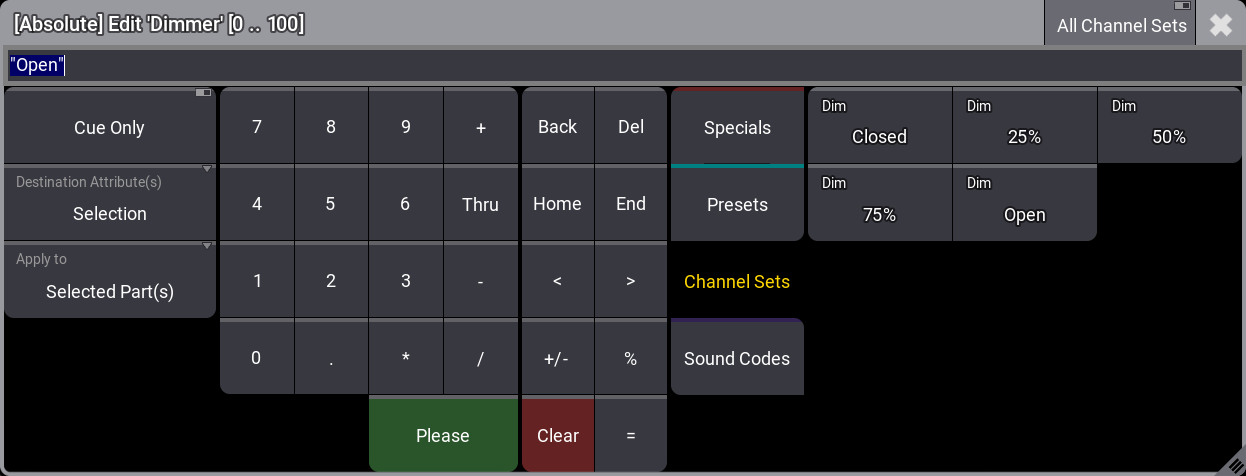
Calculator editor
Select Channel Sets and tap Closed.
This closes the calculator and changes the dimmer value to 0 in cue 3 in the sequence.
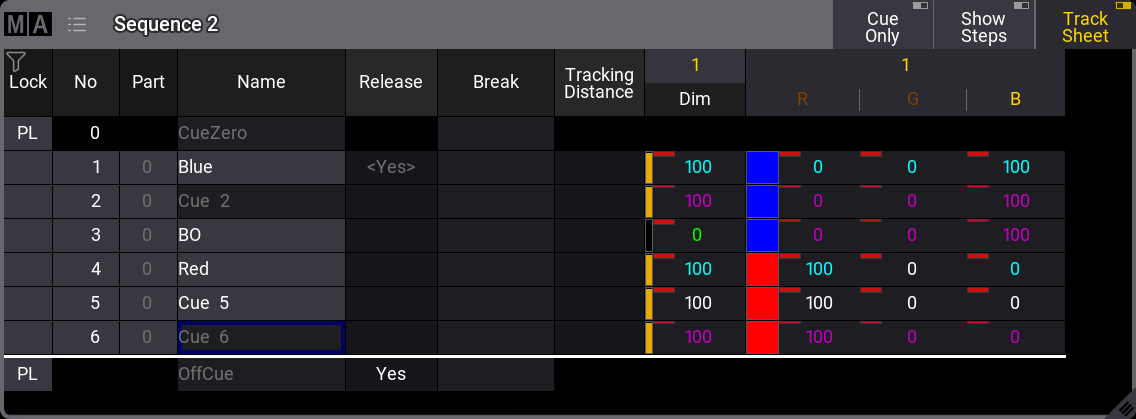
A sequence with 6 cues - fixture 1 has a new dimmer value in cue 3
The dimmer value is now green in cue 3. This indicates that the dimmer value is now stored with a lower value than the previous cue. Only dimmer values show this green indication for a lower value.
The dimmer value in cue 4 is now cyan, indicating a higher value than the previous cue.
The redundantly stored values in cue 5 can be removed from the cue by removing the stored values - also called “unblocking”.
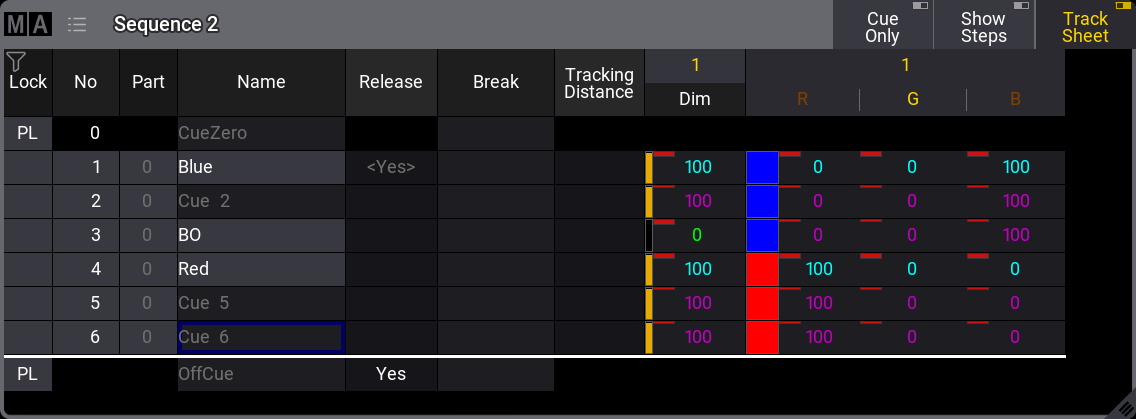
A sequence with 6 cues - unblocked sequence
There are several ways to do this.
One option is to have the values for fixture number 1 as active values in the programmer (it does not matter what the values are) and store cue 5 with the “Remove” option. This would remove the values from the cue.
A second option is using a command like this:
 | User name[Fixture]>Unblock Sequence 2 |