Images
Imported images are stored in the Image Pool. For more information, see Pool Windows.
 | Important: |
| The storage limit for the entire Image Pool is a maximum of 100 MB. The total size of all media pools is limited to 300 MB. |
We recommend keeping the image pool as small as possible. For example, keep the maximum image size below 64 MB, and do not exceed a resolution of 1 920 x 1 080 pixels.
Images can be used for appearances. Read more in the Create Appearances topic. Images can also be imported to the Gobos and Symbols pool.

Example of the image pool
To edit an image pool object, use one of the following methods:
- Press Edit and then tap the desired pool object.
- Open the swipey commands on the pool object and choose Edit.
The Edit Images pop-up opens:
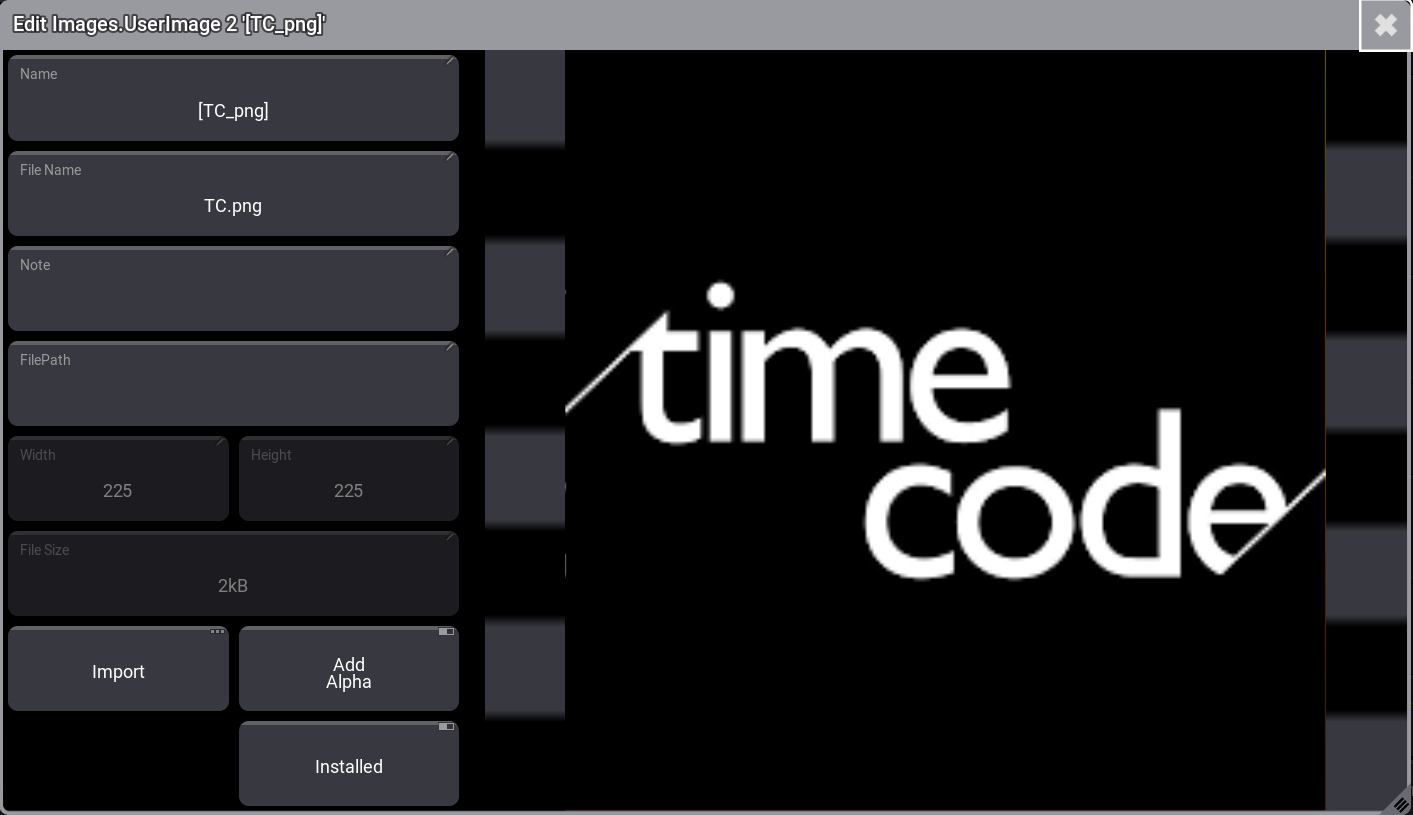
Edit Images pop-up window
Toggle on Add Alpha to make black areas in images transparent. This works only with images that do not already have a transparent channel. See example below:
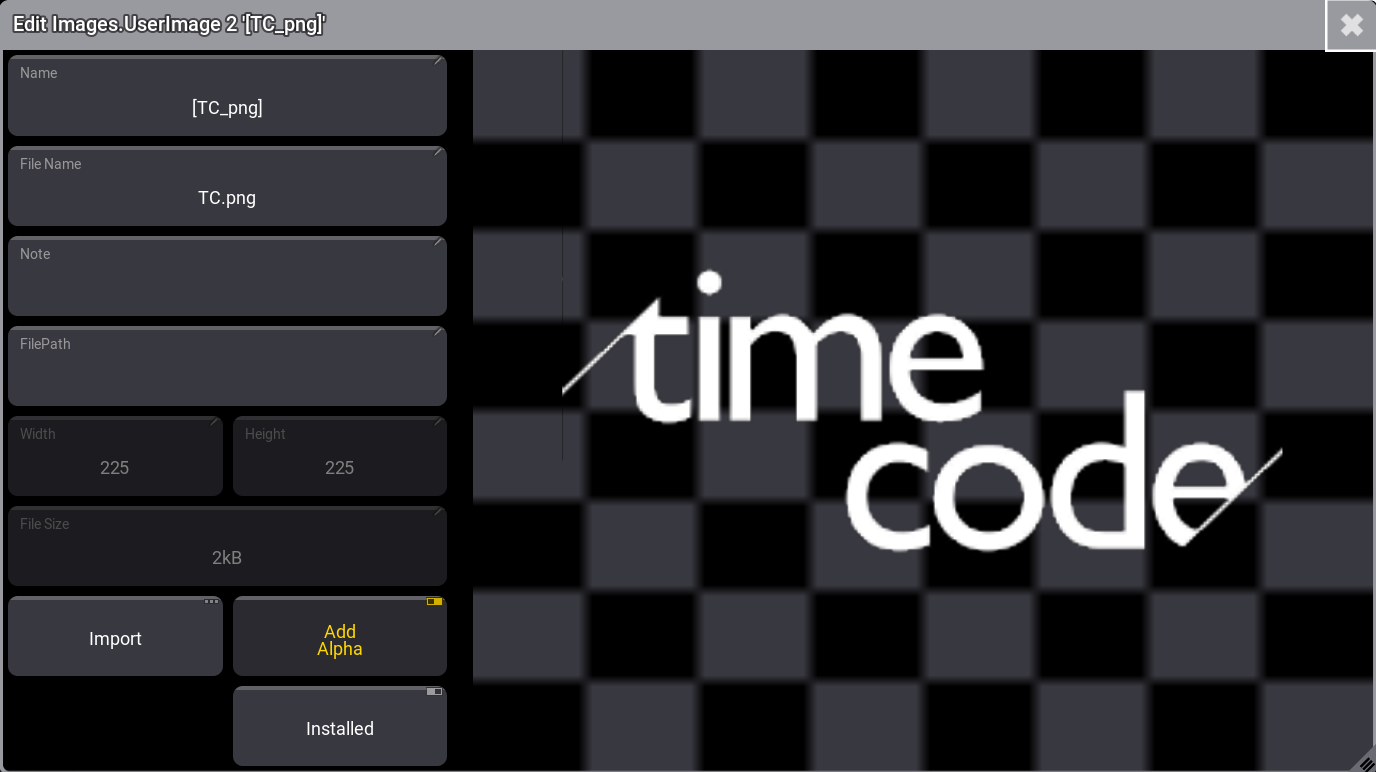
Activating Installed ensures that the files are updated from the file archive used to import them.
Import Images Using the Image Pool
Section titled “Import Images Using the Image Pool”Workflow:
- Edit an empty pool object.
- Tap the Import button.
- Tap Internal in the top-right corner of the title bar to switch the drive to the desired source.
- Select the desired image.
- Tap Import.
- Label the new image.
- Close the Edit Image pop-up.
Tap the video below to see the example: