Create a Filter
Filters are stored in the filter pool. All, Prog Only, Only Dimmer, Only Position, Only Color, Selection Only, and Parked Only are the default pool objects.
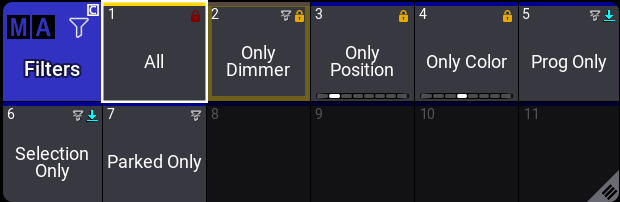
Filter pool with default filters
There are three main ways to create filers:
- Create a filter using the pool by editing one of the empty pool objects. This opens the Edit Filter menu.
- Store a new filter pool object using the current filter settings.
- Assign an object, such as a group object, to a filter pool object.
The At Filter window is a nice tool for seeing the current filter settings.
Create Filter from the Pool
Section titled “Create Filter from the Pool”The filter editor is divided into two sections: left and right. An adjustable bar separates them.
To rearrange the size of each section:
- Use the two-finger tab and hold by placing one finger on each side of the menu.
- Drag your fingers to the left or the right side. The size of the sections is rearranged.
Enabling Settings in the title bar lets you add object information, such as name, scribble, appearance, tags, and notes.
The  allows the filter editor to be moved to a different display.
If an filter object has a lock, the lock icon is displayed next to the object name in the title bar. If the object has dynamic filter rules,  **Dynamic Filte****r **is displayed underneath the object name. If it is static, no text appears.
At the bottom of the editor, filter rules can be imported and exported using Import and Export. Cut, Paste, Ooops, Delete, and Copy can be used for a selected filter rule configuration line. List References shows the related elements to the filter object. For instance, if the filter is assigned to a preset.