Sound Input Configuration
To go to the Sound Input Configuration Window, press Tools and tap at Sound Input.
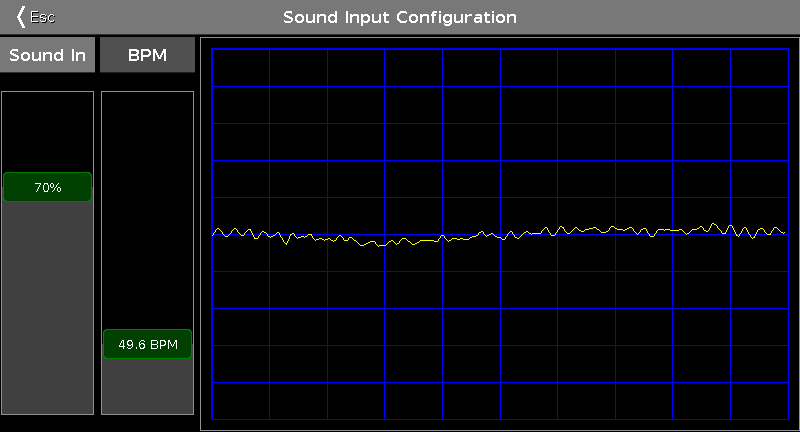
Figure 1: Sound Input Configuration Window
This window displays the received sound wave from the connected audio-in. For more information about how to connect audio-in, refer to Getting Started Guide - Physical Setup and Layout.
To adjust the incoming sound signal into a curve that fits in the screen and does not overload, use the sound in slider.
To avoid huge jumps of BPM (Beats Per Minute) values and to get as close as possible to the current BPM slider value, the incoming BPM signal will be adjusted automatically by an even multiple factor e.g. 2.
To adjust the BPM manually, use the BPM slider.
To leave the Sound Input Configuration Window, tap  in the title bar or press Esc on the console.
Encoder Bar Functions
Section titled “Encoder Bar Functions”The default encoder speed is without decimal place.
To change the encoder speed to slow, press the encoder key  . The encoder speed is with decimal place.
To change the encoder speed to ultra slow, press and hold the  key and press the encoder key . The encoder speed equals one DMX step.

Figure 2: Encoder Bar - Sound Input Configuration Window
Sound In(%):
To select the value of Sound In, turn the encoder left or right.
To open the calculator, press the encoder.
BPM:
To select the BPM, turn the encoder left or right.
To open the calculator, press the encoder.