Video Preset Type
To go to the Video Preset Type View, tap Video in the Preset Type Bar.
- or -
Press and hold  and press 9, for preset type 9 (= Video).
The Video Preset Type View is fragmented in the smart view and raw video views. The raw video views are different, depending on the fixture type.
The video preset type view is only active if the selected fixture type has video attributes.
To open the video effects view, tap at  in the title bar.
Smart View
Section titled “Smart View”The smart view is the first tab of the video preset type view.
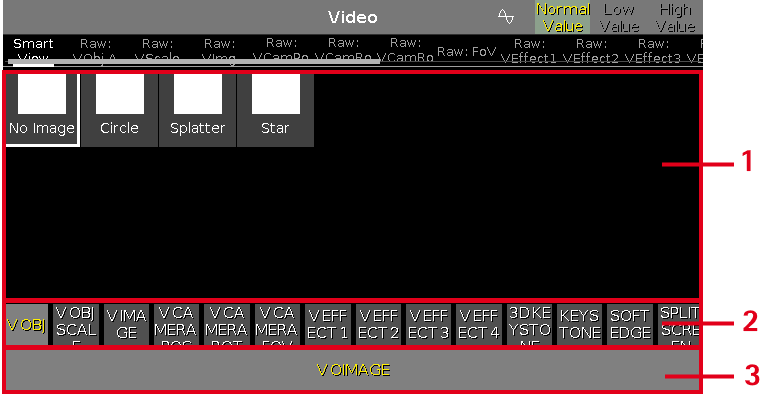
Figure 1: Smart view
The smart view is optimized for video server with many attributes.
The smart view is fragmented in the areas:
- Displays the ChannelSets
- Displays the Features
- Displays the Attributes

Figure 2: Red color indicator
Red color indicates that this value comes from the programmer and you can store it.

Figure 3: Red frame indicator
The red frame indicates this value comes from the programmer.
Raw Video Views
Section titled “Raw Video Views”The raw video views are located after the smart view
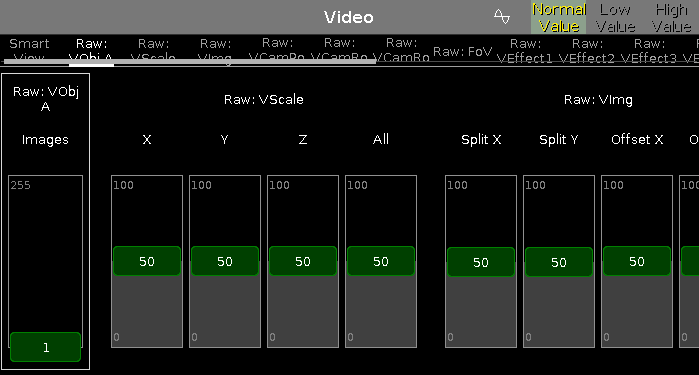
Figure 4: Raw video view
Important:
The video sliders works absolute. A tap on a video slider sets a new video value and does not follow the already set video values.
The respective encoders works relative to the already set video values.
In the raw video view, you control the raw video values in natural values (0-100) of the selected fixture type.
Encoder Bar Functions
Section titled “Encoder Bar Functions”
Figure 5: Encoder Bar - Video Preset Type
In the upper left corner of the encoder is the corresponding slider displayed.
To select the value, turn the encoder left or right.
To change the encoder speed to slow, press the encoder key  .
.
To change the encoder speed to ultra slow, press and hold the  key and press the encoder key .
To open the calculator, press the encoder.